
Calculation Field
ProCreate dynamic calculation fields in registration forms that automatically compute totals, prices, or quantities based on user input in real-time.
Last updated on Jul 15, 2026
Want to automatically calculate totals, prices, or quantities in your registration forms based on user input? User Registration & Membership lets you add calculation fields that perform real-time calculations as users complete the form. This guide will walk you through setting up and using calculation fields.
Before you begin, make sure you’ve installed and activated the User Registration & Membership Pro plugin (v4.1.0 or later) with a Plus or Professional plan license.
Activating the Calculations Addon
To use calculation fields, you'll first need to activate the Calculations addon.
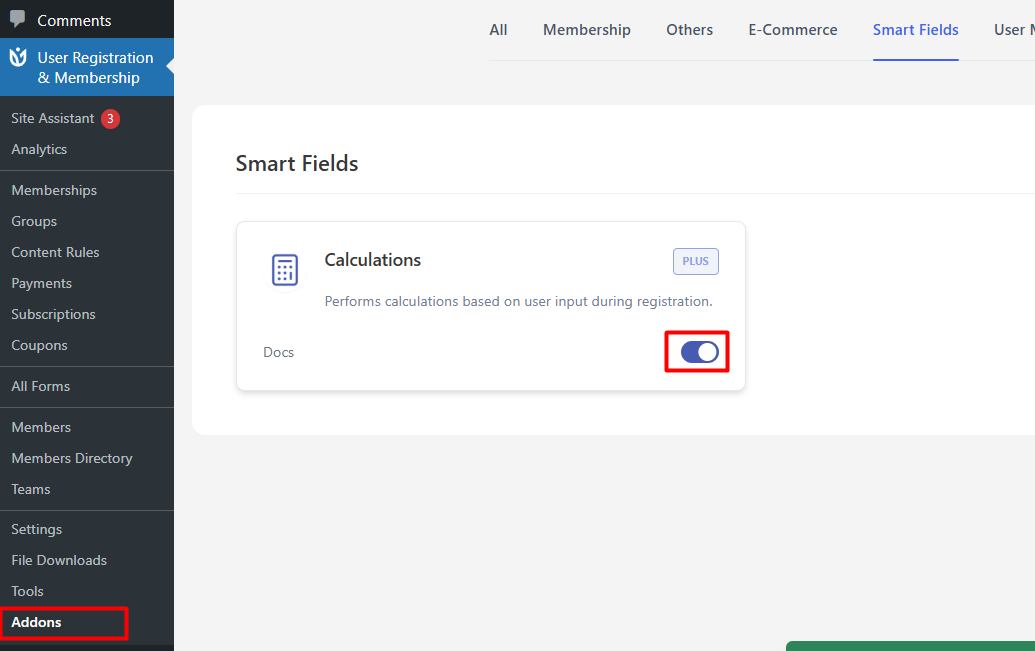
Go to User Registration & Membership → Addons in your WordPress dashboard. Here, you'll see a list of available addons for your plan.
Locate the Calculations addon in the list and toggle the switch to Activate. The addon will install and activate automatically.
Adding a Calculation Field to Your Form
Once the addon is active, you can add calculation fields to any registration form.
Go to User Registration & Membership → All Forms and either click Add New to create a new form or select an existing form to edit.
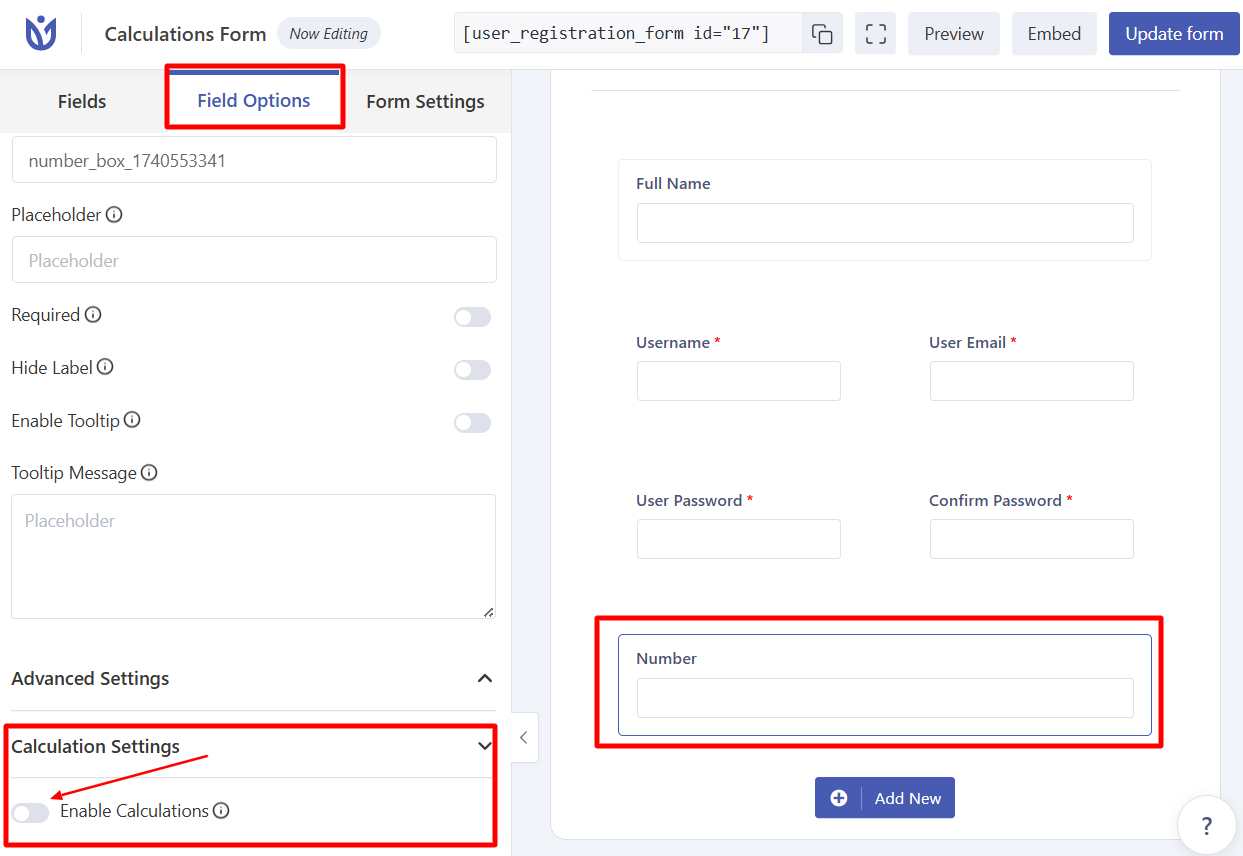
In the form builder, drag and drop a Number field from the left panel into your form. Calculation results can only be displayed in Number fields.
Click on the Number field you just added to open its settings in the left panel.
Configuring the Calculation
In the Field Options tab, scroll down to the Calculation Settings section.
Toggle the switch to enable Calculations for this field.
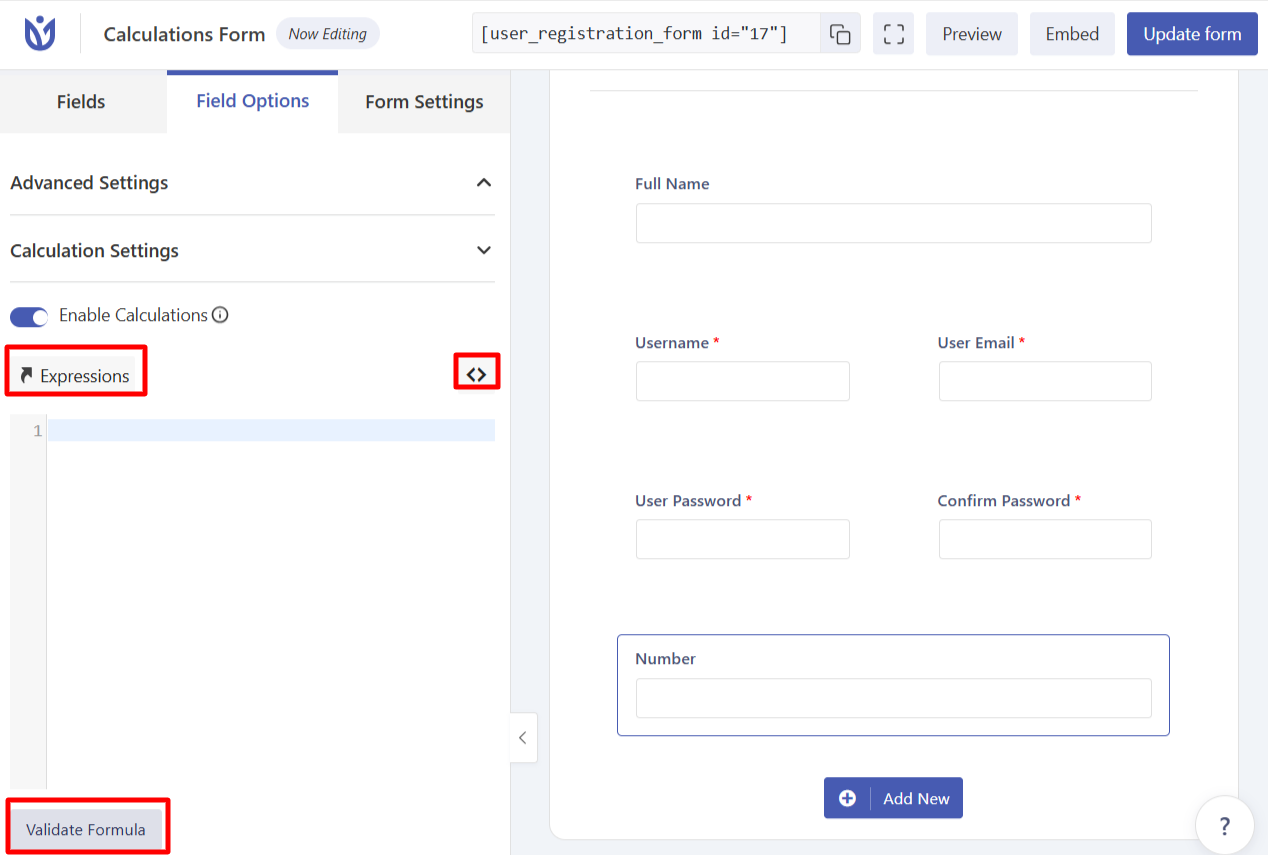
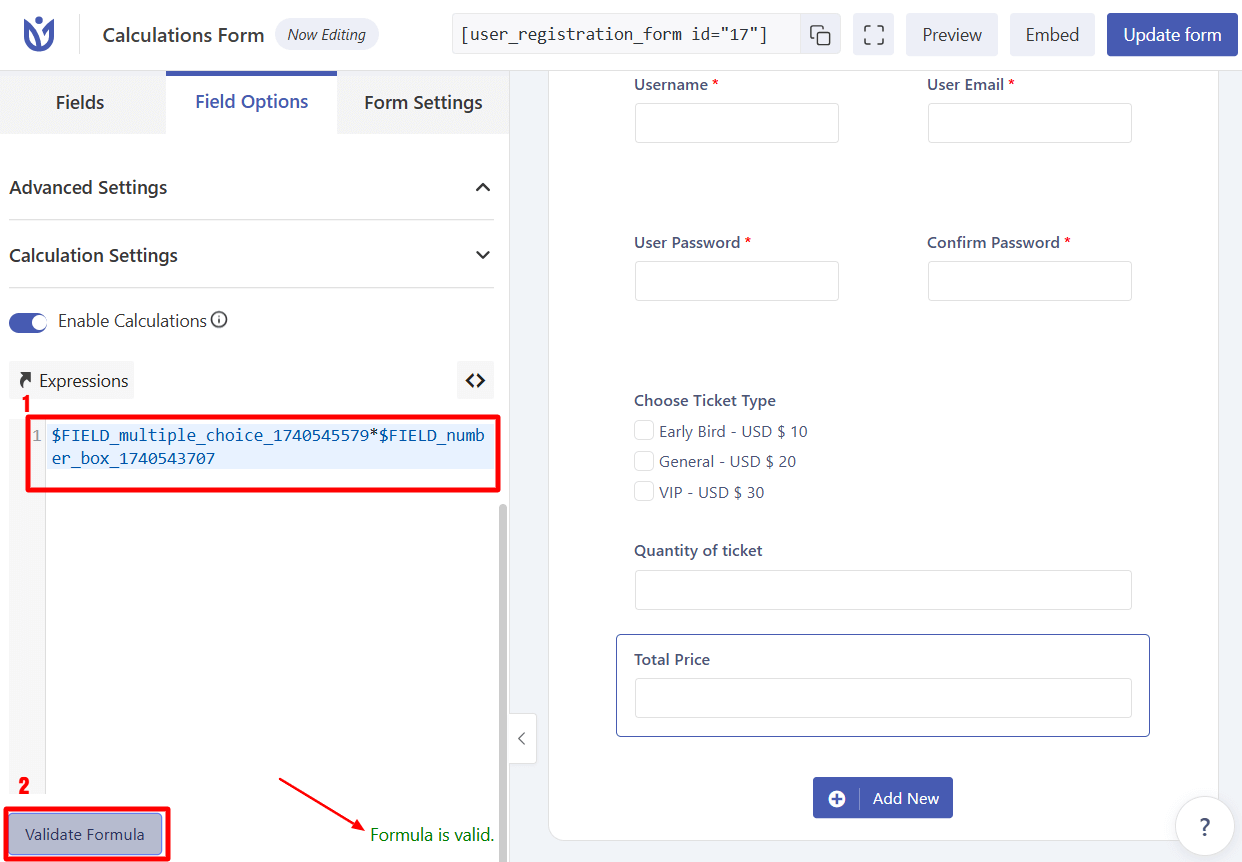
In the Expressions field, enter your calculation formula. You can use mathematical operators and reference other form fields in your formula.
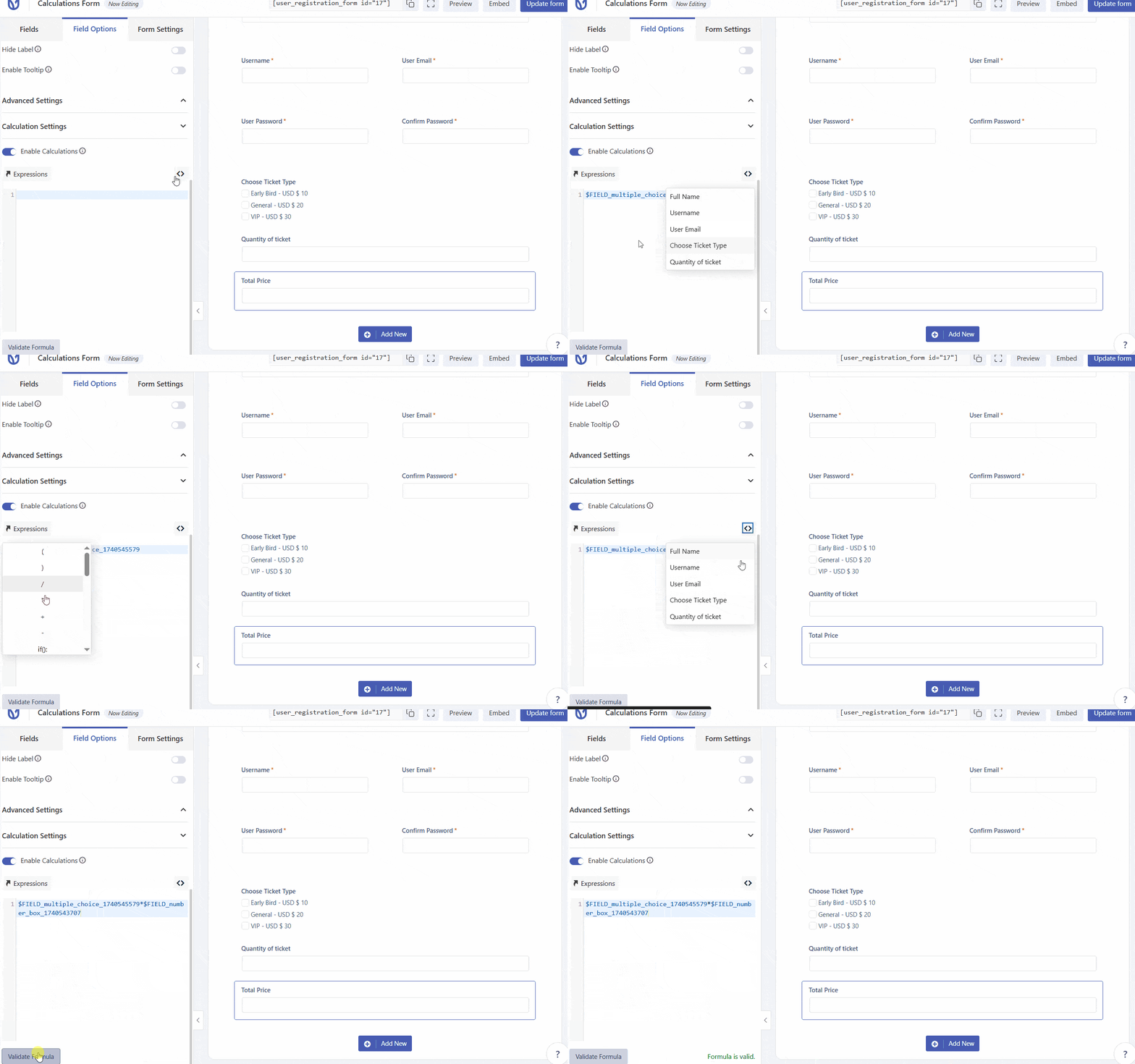
To reference other form fields in your calculation, click the < > icon next to the Expressions field. This will show you a list of all fields in your form.
When you select a field, it will be inserted into your formula as a field ID (for example, $FIELD_user_login for the Username field). Field IDs always start with $FIELD_ followed by the field name.
Validate Formula: Once you use the expression on the form fields, you can click on Validate Formula to verify whether the formula is correct.
Once your formula is valid, click Save or Update to save your form.
Supported Operators and Functions
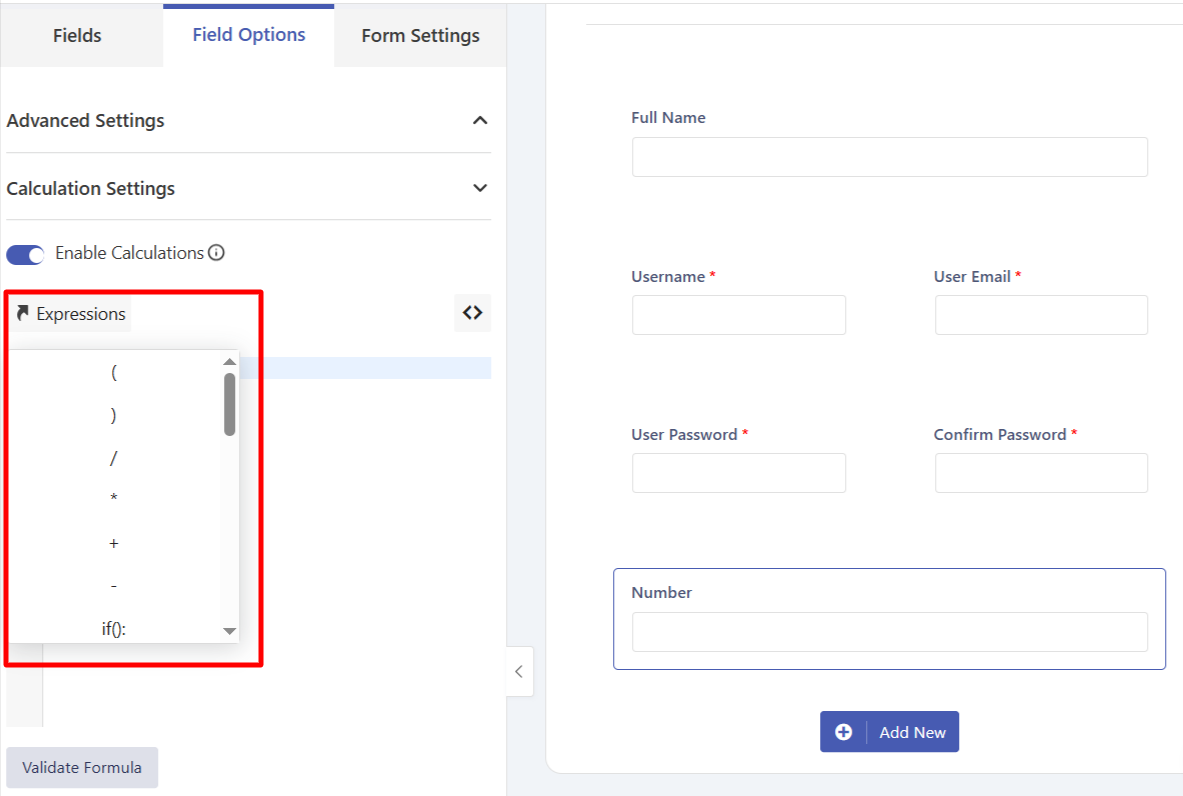
The Calculations addon supports 27 operators and functions you can use in your formulas, including parentheses “( )”.
Mathematical Operators
Division: /
Multiplication: *
Addition: +
Subtraction: -
The^operator is not supported. Use thepow()function instead for exponentiation.
Conditional Operators
if(): Conditional logic based on user input
elseif(): Additional conditions
else(): Default condition
Mathematical Functions
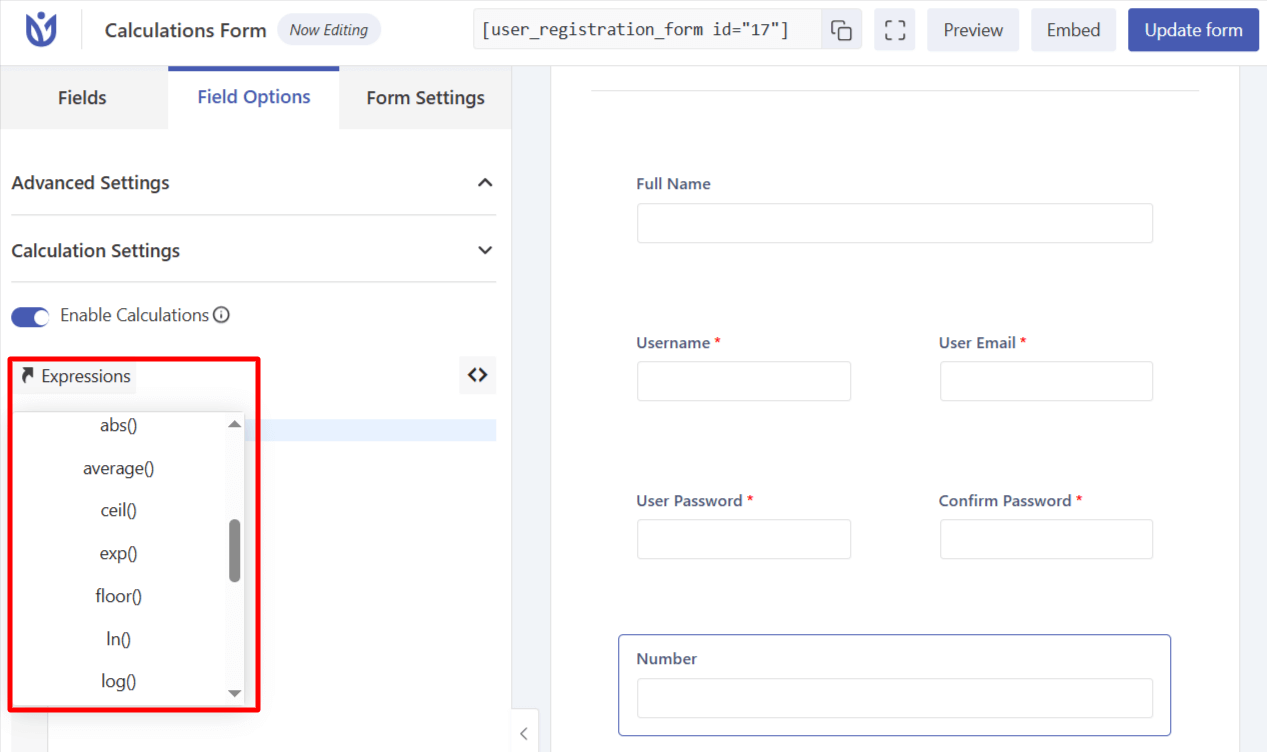
abs(): Absolute value
average(): Calculate average
ceil(): Round up to nearest integer
exp(): Exponential function
floor(): Round down to nearest integer
ln(): Natural logarithm
log(): Logarithm
max(): Maximum value
min(): Minimum value
num(): Convert to number
pi(): Pi constant
pow(): Power/exponentiation
rand(): Random number
round(): Round to nearest integer
sqrt(): Square root
String/Text Functions
trim(): Remove whitespace
truncate(): Shorten text
concat(): Combine text
Example Calculation Formulas
Here are some common calculation scenarios:
Simple total: $FIELD_quantity * $FIELD_price
Percentage calculation: $FIELD_subtotal * 0.15
Conditional pricing: if($FIELD_membership_type == "Premium", 100, 50)
Complex formula with grouping: ($FIELD_base_price + $FIELD_addon_price) * $FIELD_quantity
That's it! Now you know how to add calculation fields to your registration forms.
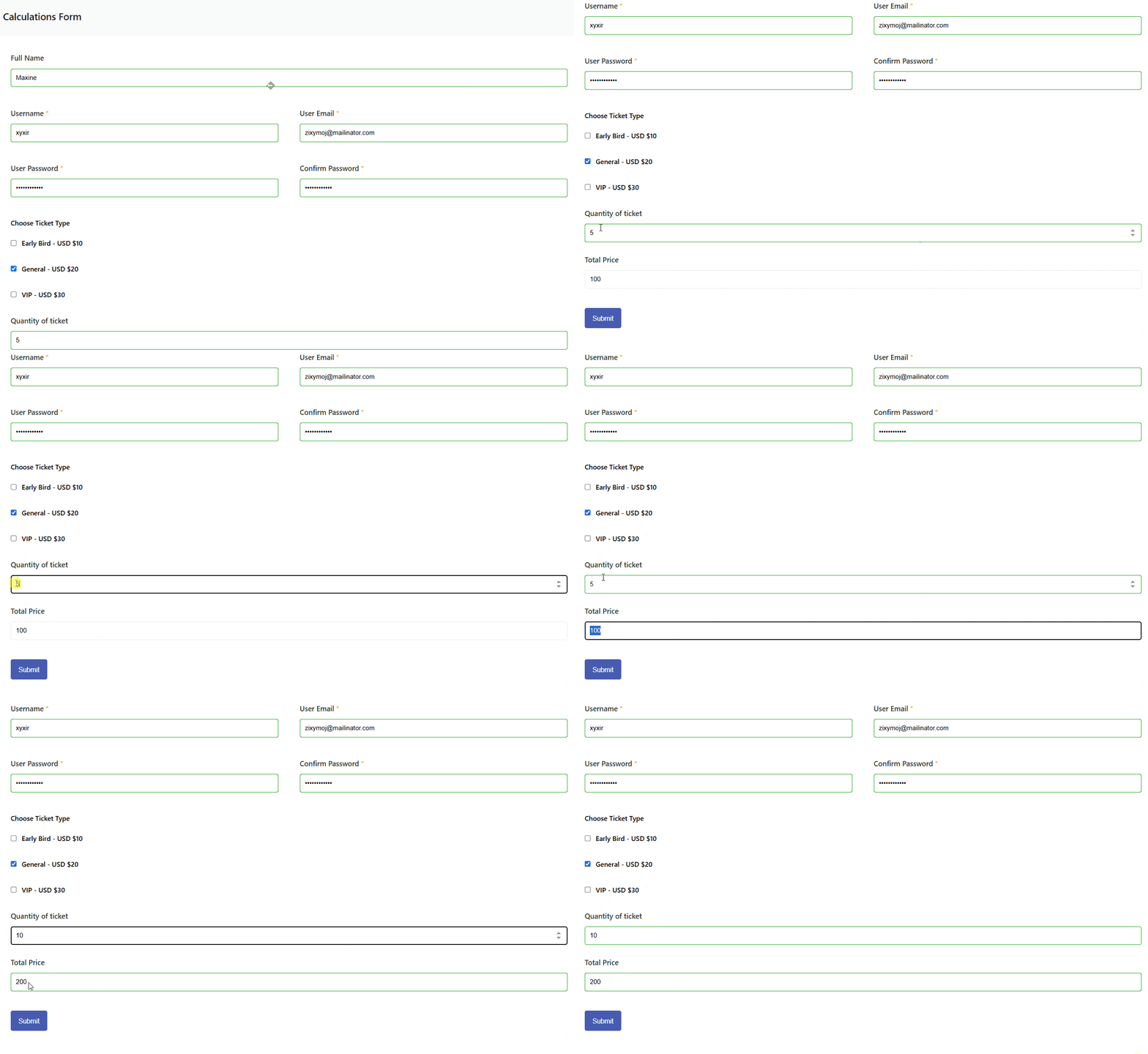
Frontend View
Next, would you like to learn how to use conditional logic to show or hide fields based on user input? Be sure to check out our guide on conditional form fields for more details.