
Save and Continue
ProEnables users to save registration progress and resume form completion later, ideal for lengthy forms requiring multiple sessions or additional information gathering.
Last updated on Jul 15, 2026
The Save and Continue feature allows users to save their registration progress and complete forms later without losing data. This is particularly useful for long or complex registration forms where users may need time to gather information or complete the form across multiple sessions.
Prerequisites
Before setting up the Save and Continue feature, ensure you have:
User Registration & Membership plugin installed and activated
WordPress admin access to configure plugin settings
At least one registration form created
User Registration & Membership Pro (premium version) for access to the Save and Continue add-on
Step 1: Enable the Save and Continue Add-on
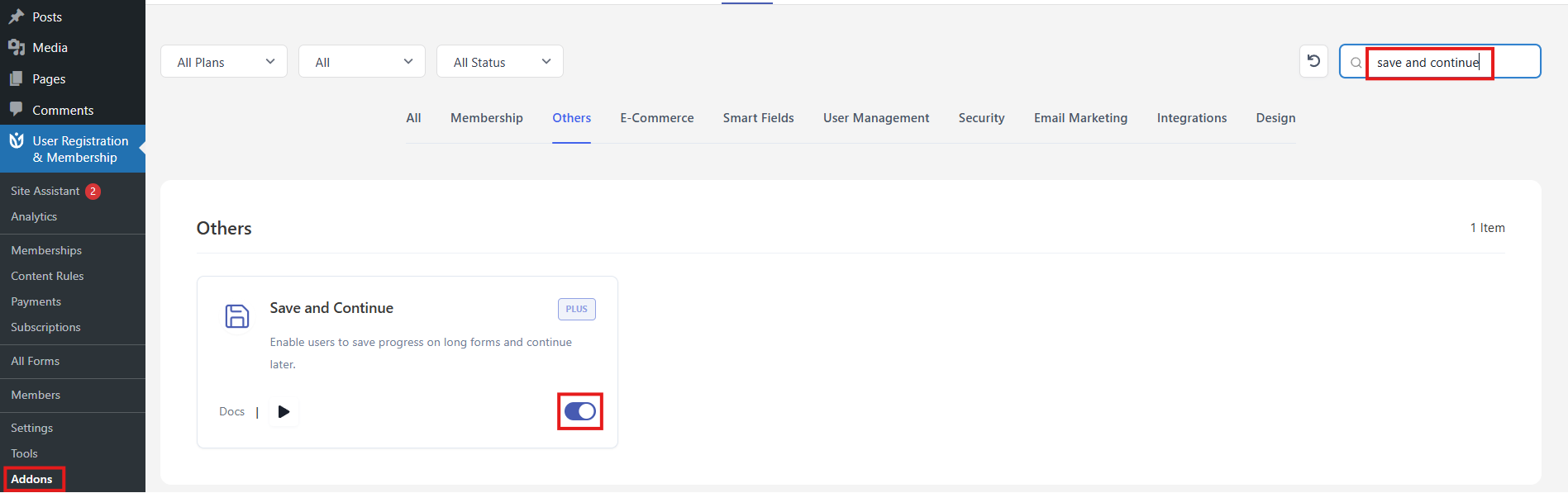
Navigate to User Registration & Membership → Addons in your WordPress dashboard
Locate the Save and Continue add-on in the list
Toggle the switch to Activate the add-on
Wait for the activation confirmation message
Setup
Enable Save and Continue on Your Form
Once the add-on is activated, you need to enable it for specific registration forms:
Go to User Registration & Membership → All Forms
Select the form where you want to enable Save and Continue
Click on the form to open the form editor
Navigate to Form Settings (located next to Field Options)
Look for the Save and Continue option in the settings panel
Toggle the Enable Save and Continue option to turn it on
Click Update Form to save your changes
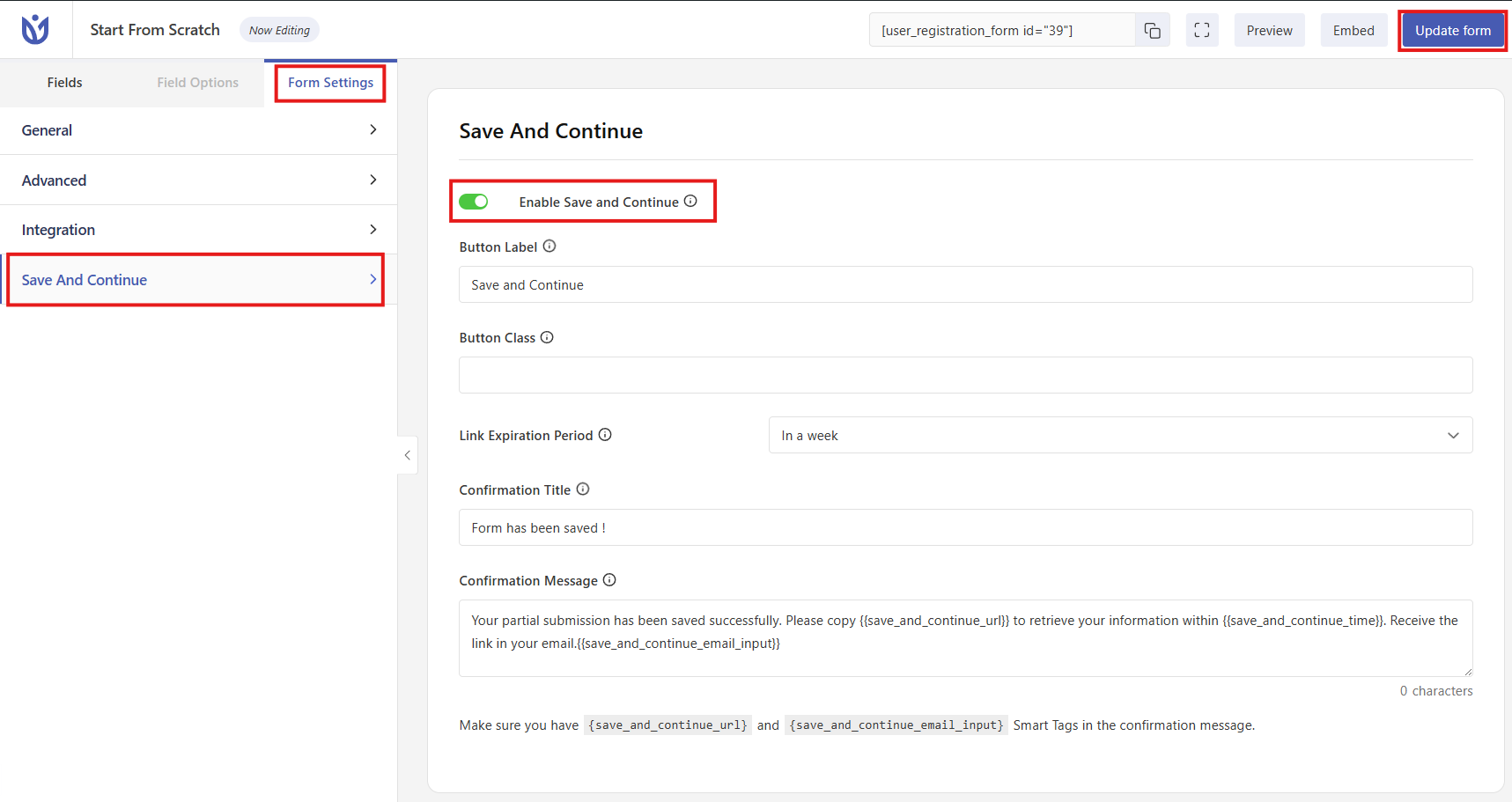
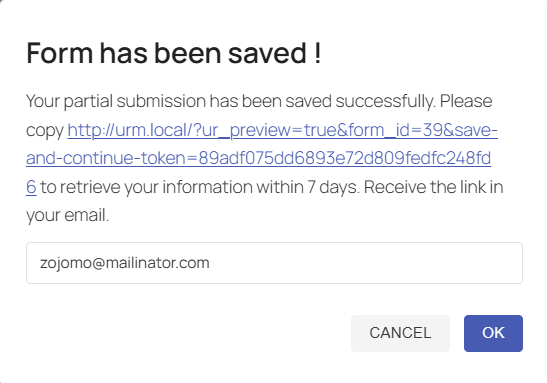
Enabling this option will let your users save the form and continue the form later on. Users can fill up the form, and click on the Save and Continue button(you can change the label from the Button Label option). Then, the users will receive an URL on the email they put in and can continue the form from that email.
How It Works
When Save and Continue is enabled on a form, users will see a Save and Continue button alongside the Submit button. Here's how the feature works:
User fills out part of the registration form
User clicks the Save and Continue button
Form data is saved to the database
User receives a unique link (typically via email) to resume the form
When the user returns using the link, their previously entered data is pre-filled
User completes the remaining fields and submits the form
Customization Options
The Save and Continue feature can be customized to match your site's needs and branding:
Button Label
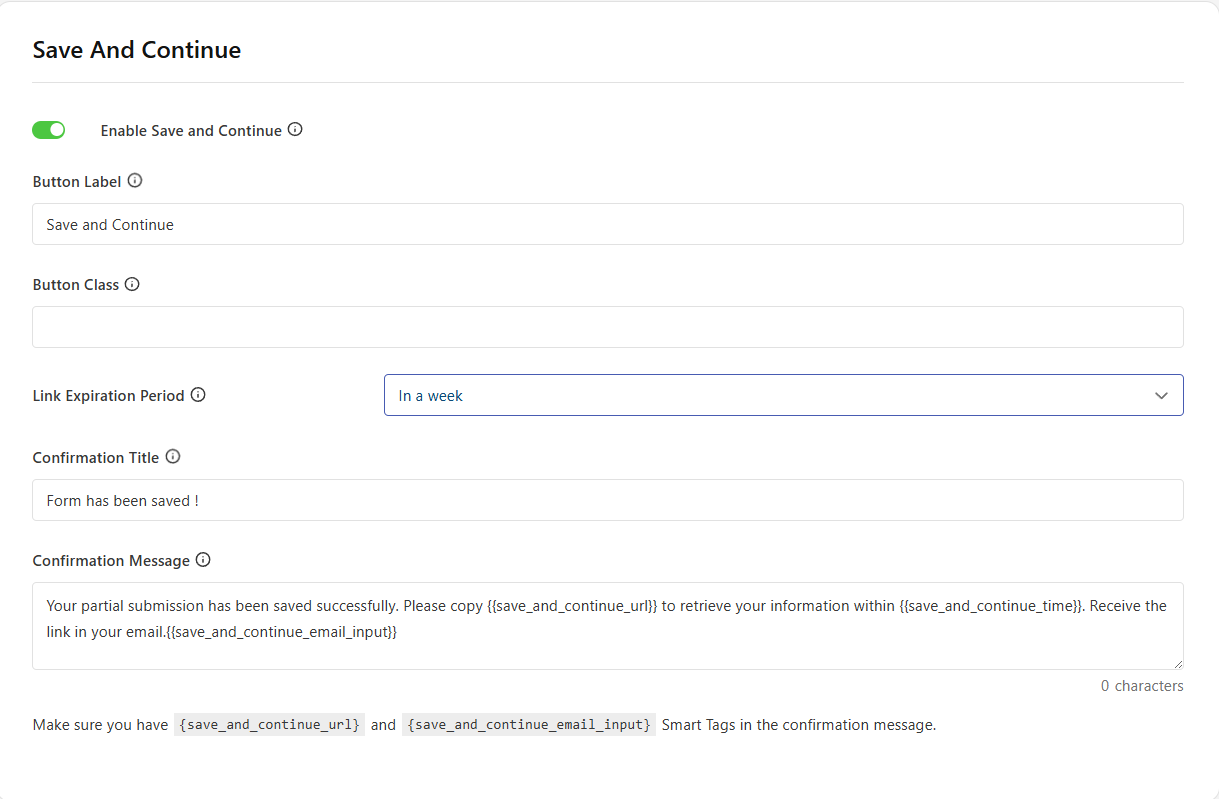
Customize the text displayed on the Save and Continue button to match your site's terminology (e.g., 'Save Progress', 'Continue Later', 'Save Draft').
Button Class
Give a custom class for the button.
Link Expiration Period
Configure how long saved form data is retained before automatic deletion (e.g., 7, 14, or 30 days) to balance user convenience with database management.
Confirmation Title
Write a custom title to appear once the user clicks on the save and continue button.
Confirmation Message
You can write your custom message for the email to be sent. Remember the three smart tags: {{save_and_continue_url}}, {{save_and_continue_time}} and {{save_and_continue_email_input}}.
Best Practices
Enable Save and Continue for forms with more than 10 fields or forms that require document uploads
Set a reasonable data retention period (7-30 days) to balance user convenience with database management
Customize the email notification to clearly explain how users can resume their registration
Test the feature thoroughly before deploying to ensure the resume link works correctly
Consider adding a message near the form explaining that users can save their progress
Troubleshooting
Save and Continue Button Not Appearing
Verify that the Save and Continue add-on is activated in User Registration & Membership → Addons
Check that the feature is enabled in Form Settings for the specific form
Clear your browser cache and refresh the page
Ensure you're using User Registration & Membership Pro (premium version)
Resume Link Not Working
Check that the email notification is enabled and being sent
Verify that the data retention period hasn't expired
Ensure WordPress permalinks are set correctly (Settings → Permalinks)
Check for conflicts with caching plugins that might interfere with the resume functionality
Saved Data Not Pre-filling
Confirm that the user is accessing the form via the unique resume link
Check browser console for JavaScript errors that might prevent data loading
Temporarily disable other plugins to identify potential conflicts
Verify that the form fields haven't been modified since the data was saved
Additional Resources
For more information about User Registration & Membership features:
Visit the official documentation at wpuserregistration.com
Contact support via live chat for technical assistance
Check the plugin's changelog for updates and new features
Start writing your documentation here...