
Set a Default Value for the Input Field
Learn how to pre-fill registration form fields with default values using smart tags or custom text in User Registration & Membership plugin.
Last updated on Jul 14, 2026
Would you like to pre-fill registration form fields with default values? User Registration & Membership allows you to set default values for input fields using smart tags or custom text. This tutorial will show you how to configure default values for any input field in your registration forms.
Before getting started, make sure you've installed and activated the User Registration & Membership plugin on your WordPress site.
Adding a Default Value to an Input Field
To set a default value for an input field, go to User Registration & Membership → All Forms and select the form you want to edit. Once you're in the form builder, you can configure default values for any input field.
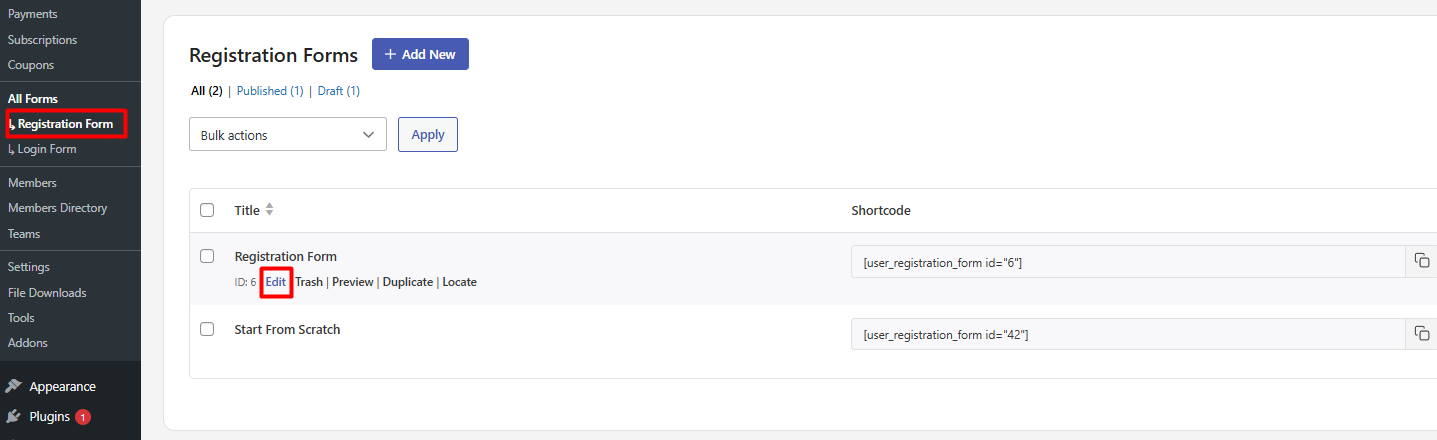
Click on the input field you want to configure. This will open the Field Options panel on the left side of the screen.
In the Field Options panel, navigate to Advanced Settings. Here, you'll see a default value option for the selected field.
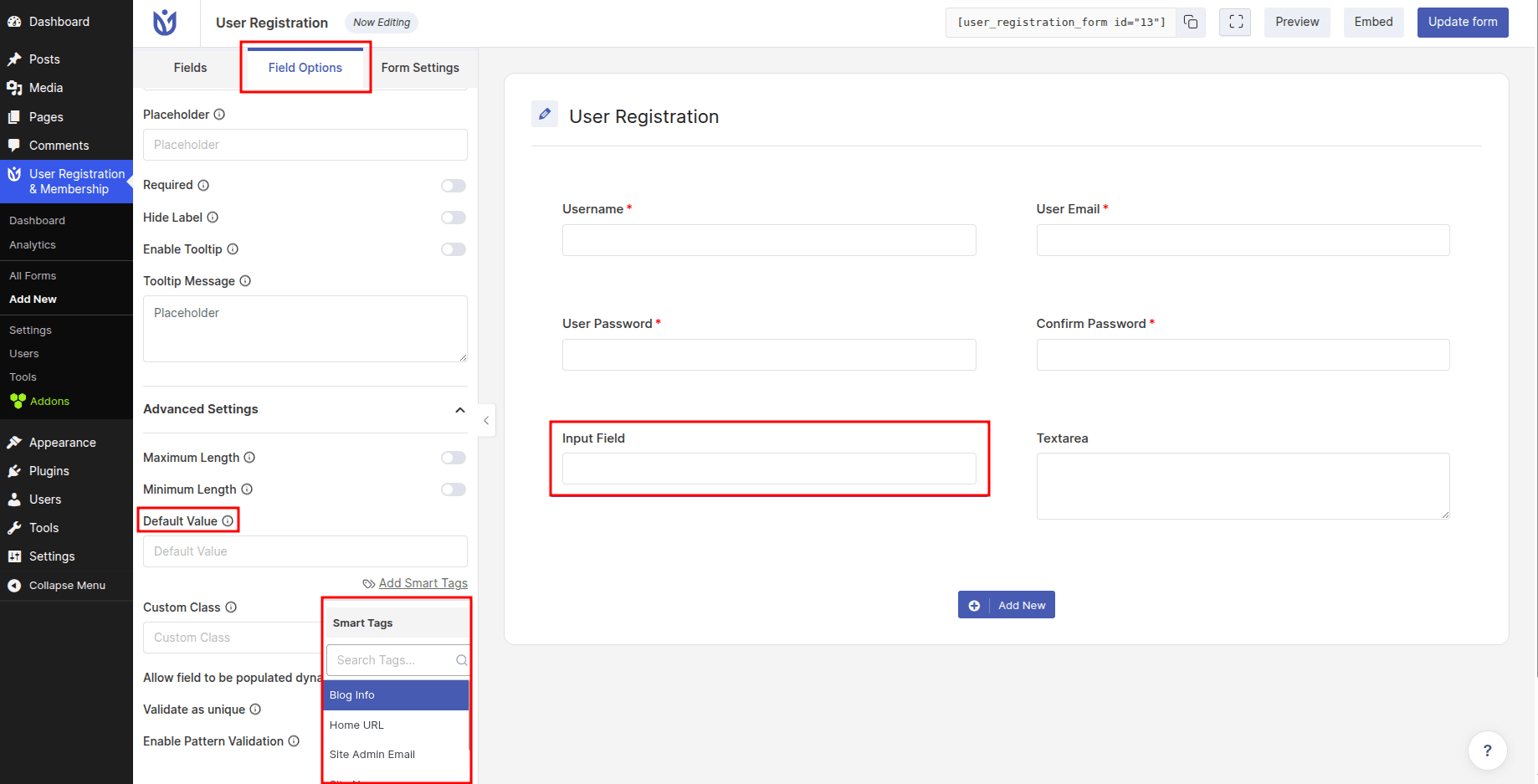
You can enter any text or value you want to appear in the field by default. For example, you might enter a placeholder company name, a default country, or any other value that makes sense for your form.
Using Smart Tags for Dynamic Default Values
Smart tags are dynamic placeholders that automatically insert user or website information into form fields. To use smart tags in your default value, click on the < > button next to the default value field.
This will display a list of available smart tags. Select the smart tag you want to use, and it will be inserted into the default value field.
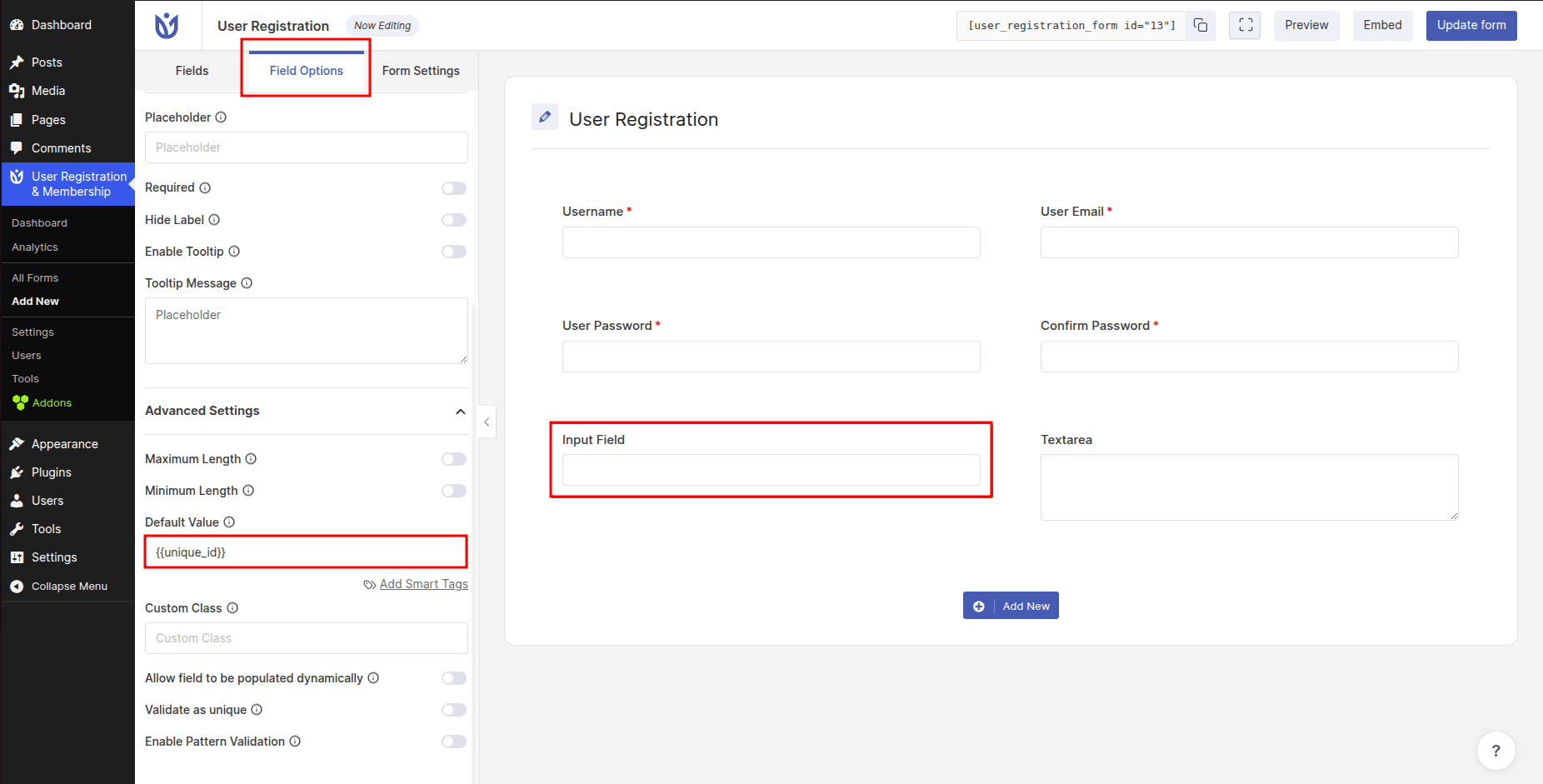
One particularly useful smart tag is the unique ID generator. The {{unique_id}} smart tag generates a unique identifier for each user who registers through the form. This is helpful when you need to assign unique reference numbers or tracking codes to new registrations.
Saving Your Changes
Once you've configured the default value for your input field, click the Update form button in the top right corner to save your changes. The default value will now appear in the field when users view your registration form.
That's it! Now you know how to set default values for input fields in your registration forms. Next, would you like to learn more about using smart tags in other parts of your forms? Be sure to check out our guide on smart tags for all the available options and how to use them in email notifications.