
Geolocation
ProAutomatically capture user location data during registration and enable Google-powered address autocomplete to streamline form completion and collect accurate geographic information.
Last updated on Jul 15, 2026
The Geolocation addon captures users' location data during registration and provides Google-powered address autocomplete for registration forms. This helps you collect accurate location information and makes it easier for users to fill out address fields.
What You'll Need
User Registration & Membership Pro (Plus or Professional plan)
Google Cloud account with billing enabled (for address autocomplete)
Google Places API and Maps JavaScript API enabled
How It Works
The addon provides two main features:
Automatic geolocation capture - Collects location data when users register
Address autocomplete - Suggests addresses as users type in input fields
Activate the Addon
Go to User Registration & Membership → Addons
Find the Geolocation addon
Toggle it to Activate
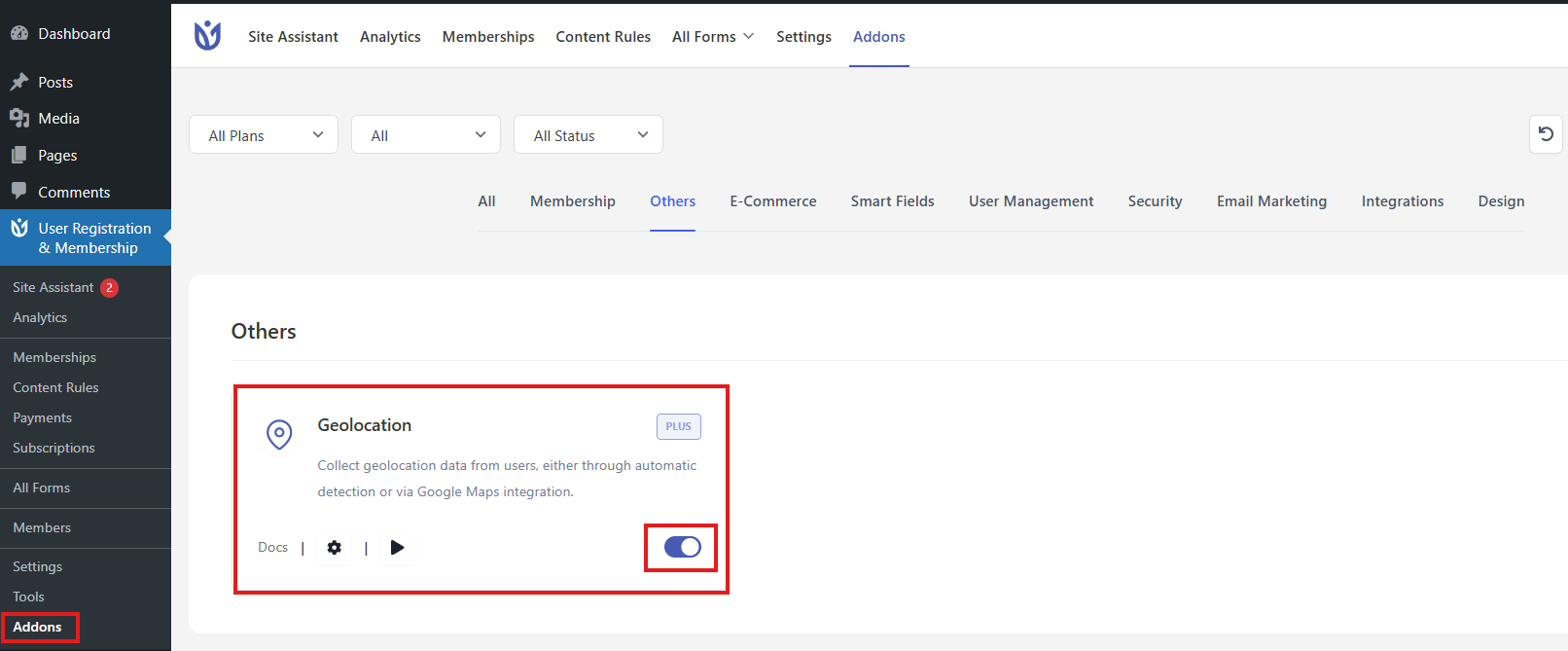
Activating the Geolocation addon from the Addons page
Once activated, geolocation data is automatically collected when users register.
Setting up Geolocation
The users filling out the form can promptly fill the address field with the User Registration address autocomplete feature. This feature is easy to set up and works with Google.
Generating API Key
Please follow the steps given below to enable the Google Places API and add it to the User Registration’s settings.
Select a project at the top of your Google Cloud dashboard to enable the API key. (If you don’t have an existing project, you can create a project by clicking on ‘New Project‘)
Google will require you to enable billing on your account in order to use the Places feature.
Once you have selected/created a project, you will be redirected to the API & Services dashboard of that project. If not, click on the menu icon on the top left corner of the screen and go to API & Services > Dashboard. Now, click ‘+Enable APIS & Services’.
Once you click on this option, it will open the API Library. From here, search and enable the following APIs:
Places API
Maps JavaScript API
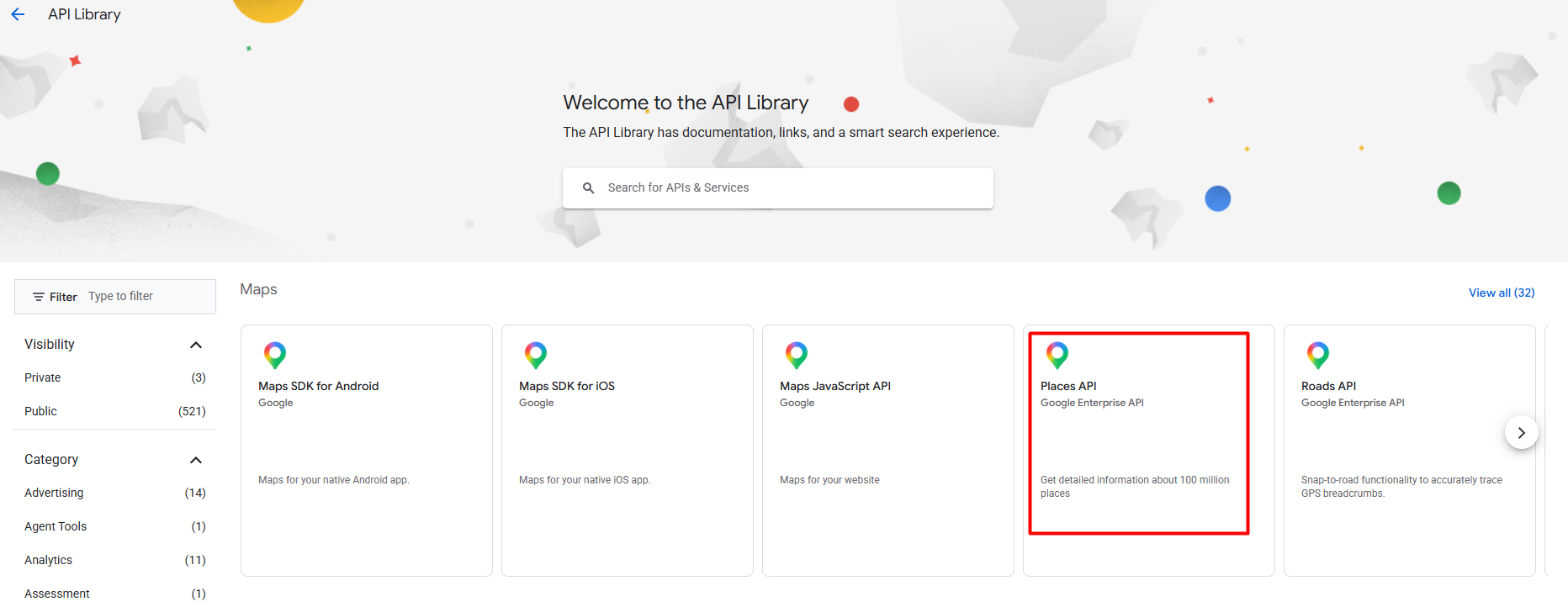
Once you’ve enabled the required APIs, navigate to APIs & Services » Credentials in the menu on the left. From here, click +CREATE CREDENTIALS and select the API key option to generate an API key.
Your API will be presented to you in a pop-up window. Copy to clipboard.
Adding API Key to the User Registration Settings
Once the API key is generated, follow the steps below to add the key to the settings.
Go to User Registration & Membership > Settings > Integration > Geolocation.
Add the copied API Key in Google Places API Key and click on Save Changes.
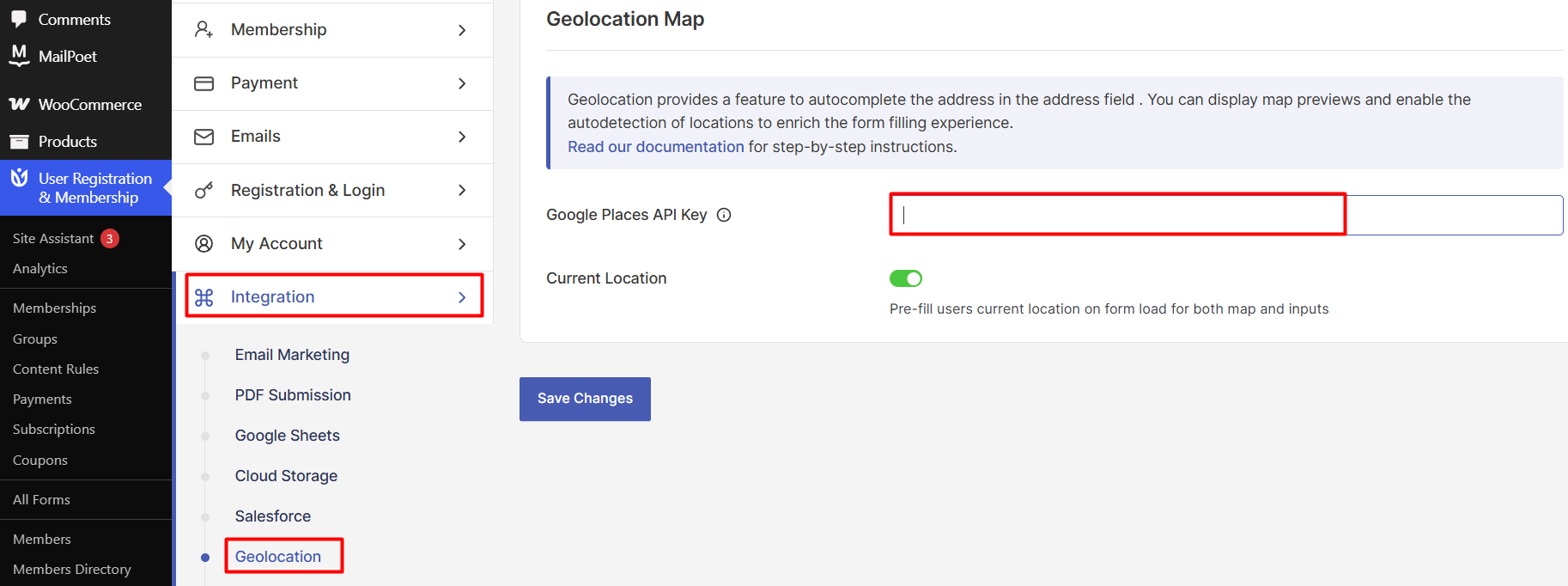
Adding the auto-complete address field on a form:
Now, go to the form and add an ‘Input Field’. Click on the ‘Input Field’ and you will see the field options on the left-hand side. Scroll the available options to find ‘Enable Autocomplete Address Field’. Select ‘Yes’.
View Geolocation Data
After users register, you can view their location data in two places:
In Email Notifications
Go to User Registration & Membership → Settings → Emails
Click on Add New Email.
In the Email Content field, add the smart tag {{geolocation}}
Save your changes
The geolocation data will now appear in emails sent for that event.
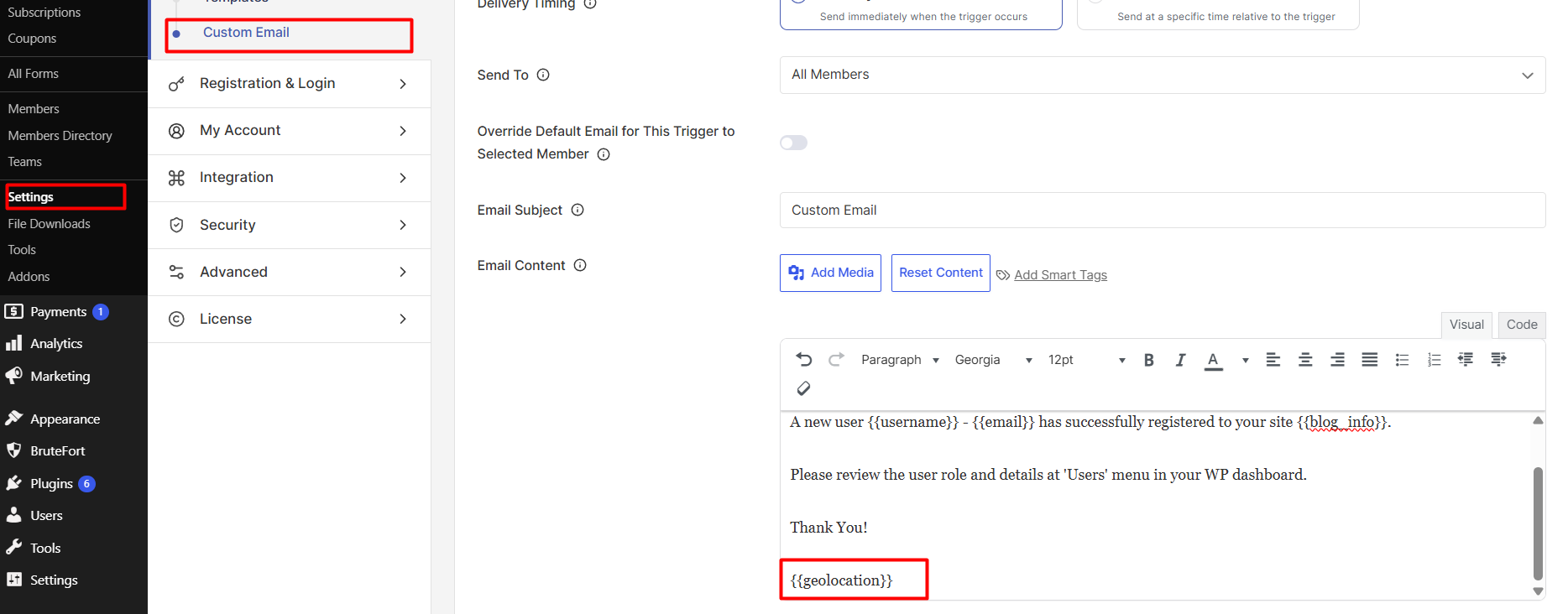
Adding the geolocation smart tag to email templates
In the Admin Dashboard
Go to Users tab in your WordPress dashboard
View geolocation information for each registered user
Frontend View
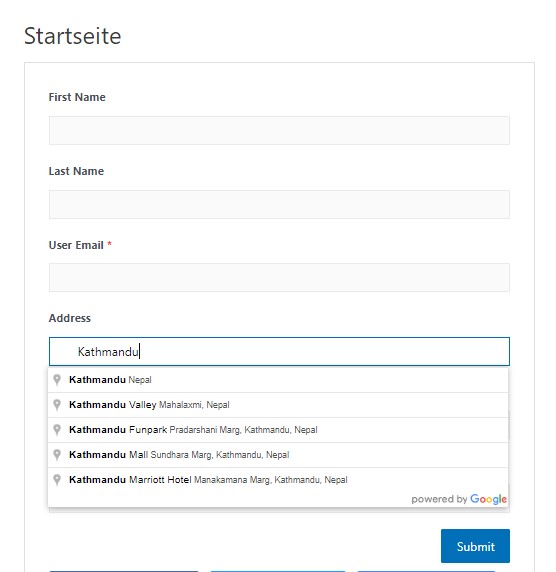
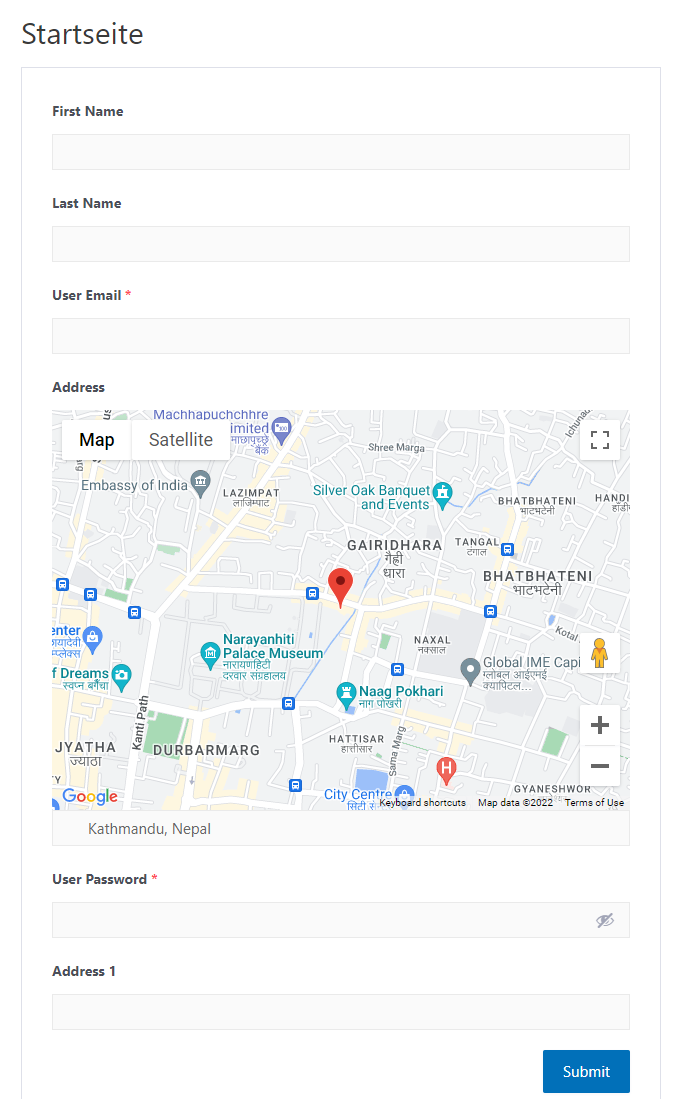
You can now type in the address and you will be provided with adequate suggestions for the address. For example, we have typed Kathmandu and were able to find a few suggestions. Also, there are two styles available. One is a plain address style and on the other one, you can find a map.
Address Style
Map Style
Important Notes:
Google requires billing to be enabled for Places API usage
Both Places API AND Maps JavaScript API must be enabled for autocomplete to work
Geolocation data is automatically collected once the addon is activated
The Geolocation addon is only available for Plus and Professional plans