
Form Restriction
ProControl form access with registration limits, scheduling, password protection, age verification, and geographic restrictions.
Last updated on Jul 14, 2026
Control who can access your registration forms and when. Form Restriction lets you limit registrations, schedule form availability, require passwords or age verification, and block specific countries or IP addresses.
What You Can Do
Set maximum number of registrations (total or per day/week/month/year)
Schedule when forms are available by date and time
Require a password to access the form
Verify user age before registration
Block or allow specific countries
Restrict access by IP address
Before You Start
You need:
User Registration & Membership Pro plugin installed
Plus or Professional plan license
A registration form already created
Enable Form Restriction
Step 1: Activate the Add-on
Go to User Registration & Membership → Addons
Find Form Restriction
Toggle it to Activate
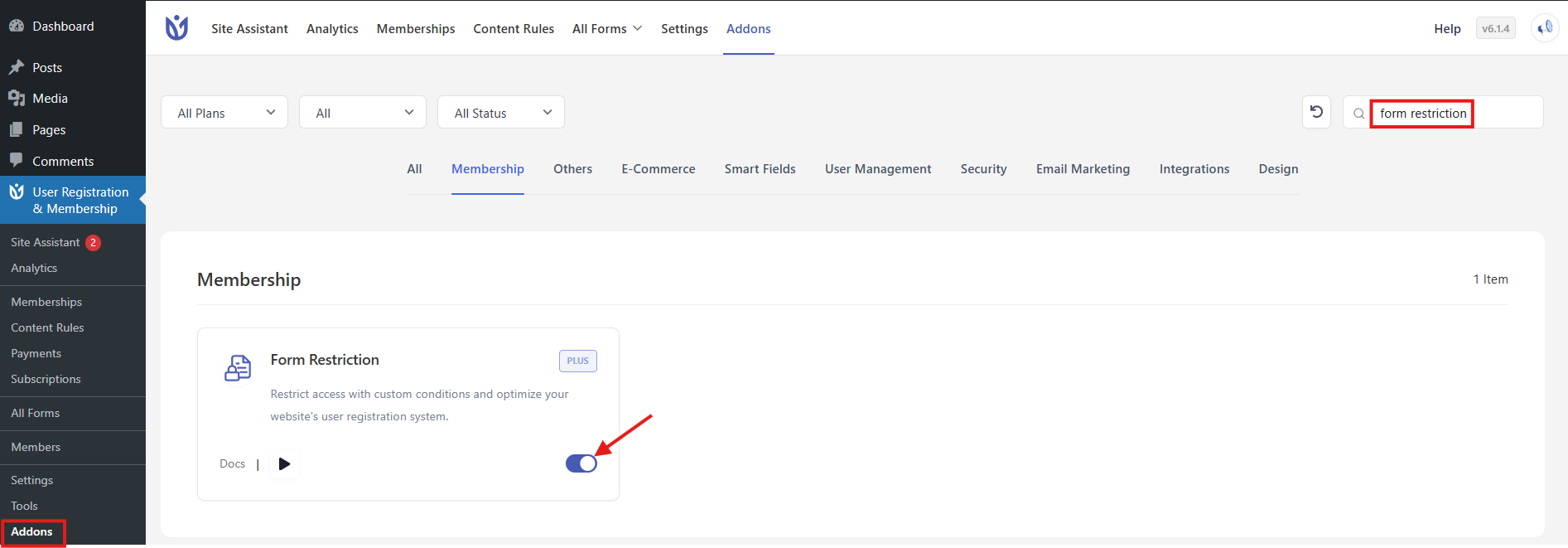
Navigate to Addons page and activate Form Restriction addon
Step 2: Open Form Settings
Go to User Registration & Membership → All Forms
Click on the form you want to restrict
Click Form Settings tab
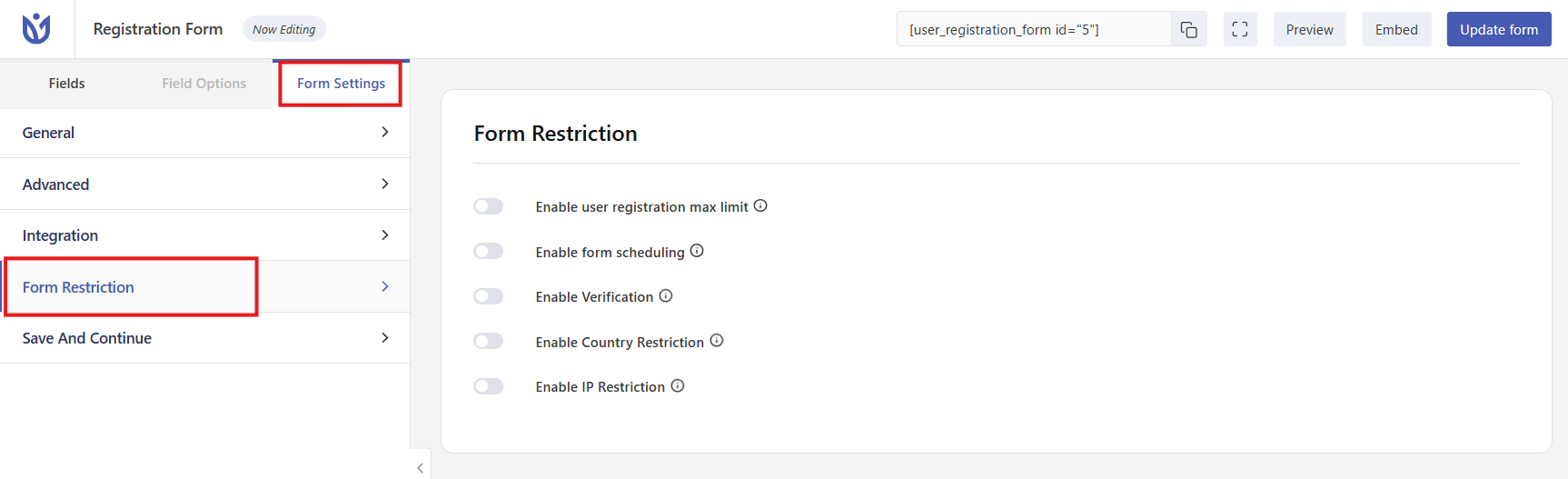
Open your form and navigate to Form Settings
Limit Number of Registrations
Stop accepting registrations after a certain number of people sign up.
In Form Settings, find User Registration Max Limit
Enable the option
Enter the maximum number of registrations
Choose the time period: Total (all time), Per Day, Per Week, Per Month, or Per Year
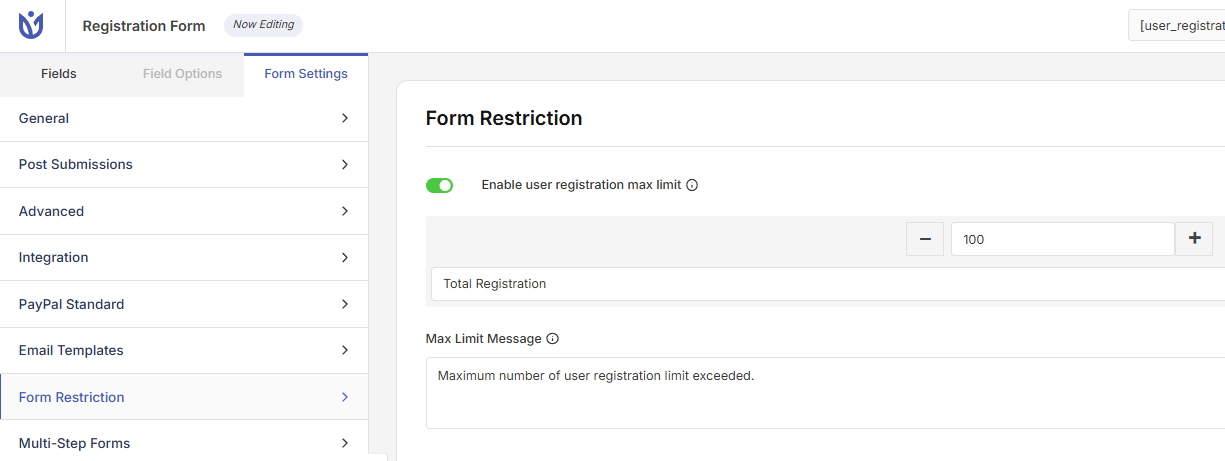
Configure maximum registration limit settings
Example: Set 100 registrations per month to limit monthly signups.
Schedule Form Availability
Make your form available only on specific days or times.
In Form Settings, find Enable Form Scheduling
Enable the option
Set the days, dates, and times when the form should be available
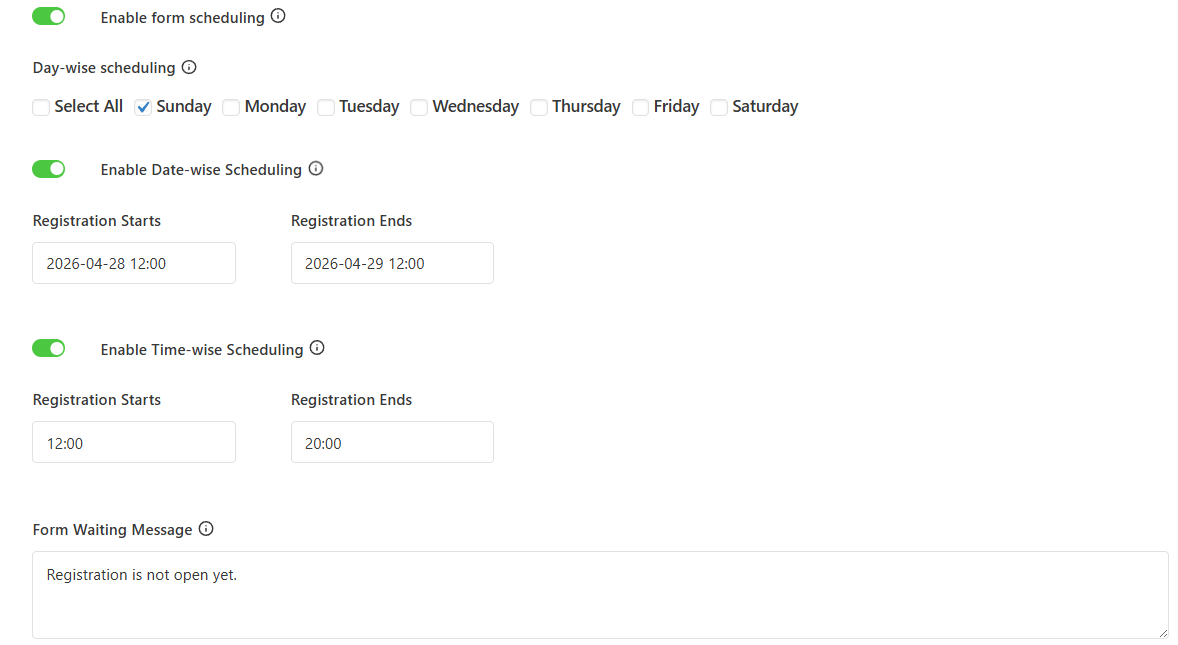
Set form scheduling with date and time restrictions
Form Verification
Enable this option to verify the form either with a password or age. You can select the option from the given dropdown.
Password Verification
Protect your form with a password that users must enter before they can register.
In Form Settings, find Enable Verification
Select Password from the restriction type
Enter the password users must provide
Add a custom message to show when the password is incorrect (optional)
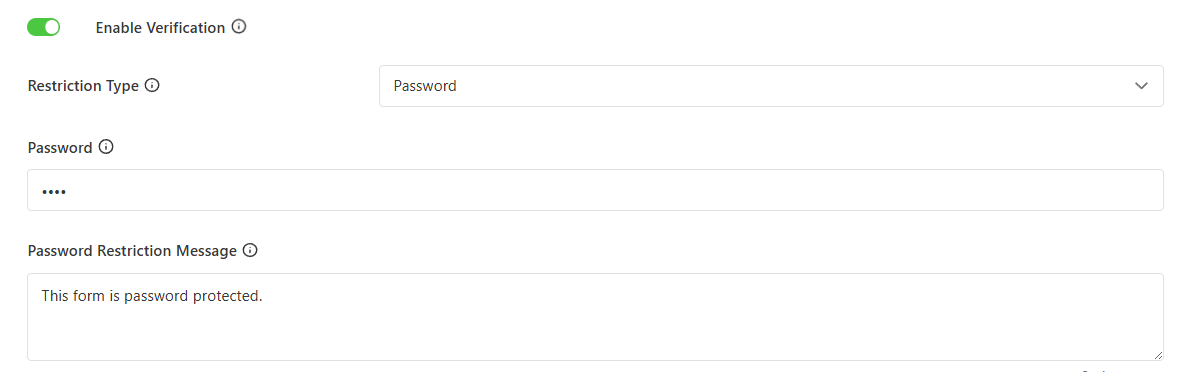
Configure password verification for form access
Example: Use this for private events where only invited guests have the password.
Verify User Age
Ensure users meet age requirements before they can register
In Form Settings, find Enable Verification
Select Age from the restriction type
Choose the age requirement: Maximum age, Minimum age, or Equal to age
Enter the age value
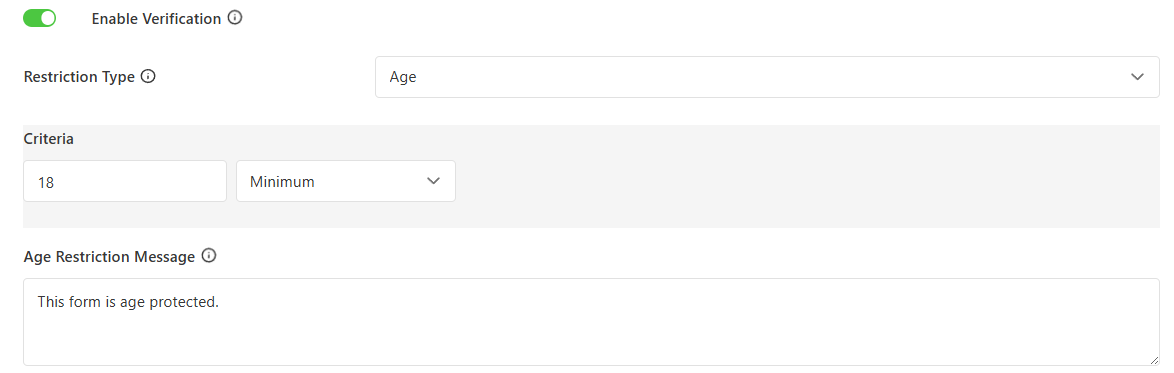
Set age verification requirements
Example: Set minimum age to 18 for adult content or services.
Q&A
Protects the access to the form by asking questions to the users
Enable Verification in Form Restriction
Choose the Restriction type to Q&A
Fill the question and answer to that question
Add row for adding another question
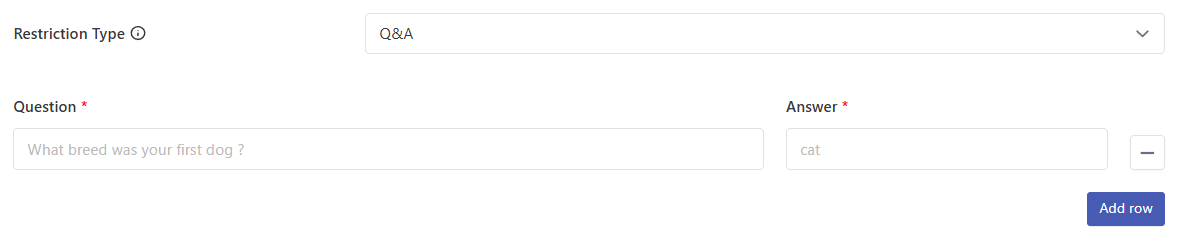
Set Questions and Answers
Block Countries
Control which countries can access your registration form.
In Form Settings, find Enable Country Restriction
Select the countries you want to block
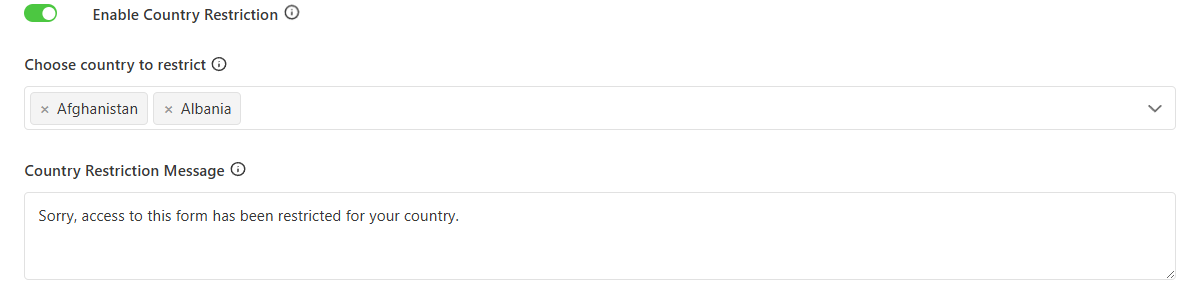
Select countries to block or allow access
Example: Allow only users from the United States and Canada to register for a regional event.
Restrict by IP Address
Block specific IP addresses or IP ranges from accessing your form.
In Form Settings, find Enable IP Verification
Enter the IP addresses or IP ranges you want to block
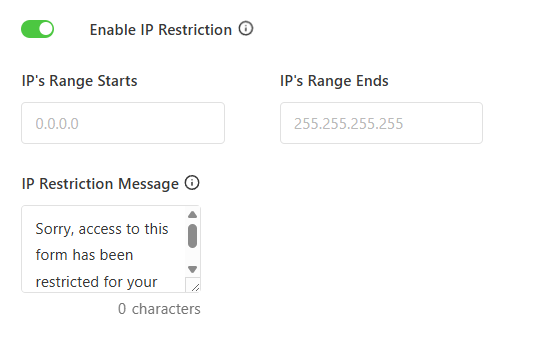
Configure IP address restrictions
Example: Block known spam IP addresses from submitting your form.
Save Your Settings
After configuring your restrictions:
Click Update Form at the top of the page
Your restrictions are now active
Important Notes
You can use multiple restrictions on the same form
Restriction messages can be customized to match your site's tone
Test your restrictions before making the form public
Form Restriction is only available with Plus or Professional plans