
Sending a Test Email
Learn how to send and verify test emails to confirm your User Registration & Membership plugin's email notification settings are working correctly.
Last updated on Jul 14, 2026
Would you like to verify that your email notifications are working correctly? User Registration & Membership allows you to send test emails to confirm your email settings are configured properly. This tutorial will show you how to send a test email and verify delivery.
Before getting started, make sure you've installed and activated the User Registration & Membership plugin on your WordPress site.
Accessing the Email Settings
To send a test email, go to User Registration & Membership → Settings → Emails. Here, you'll see the email configuration options for your registration forms.
Sending a Test Email
In the Email settings, enter the email address details to receive the test message, then click the Send Email button.
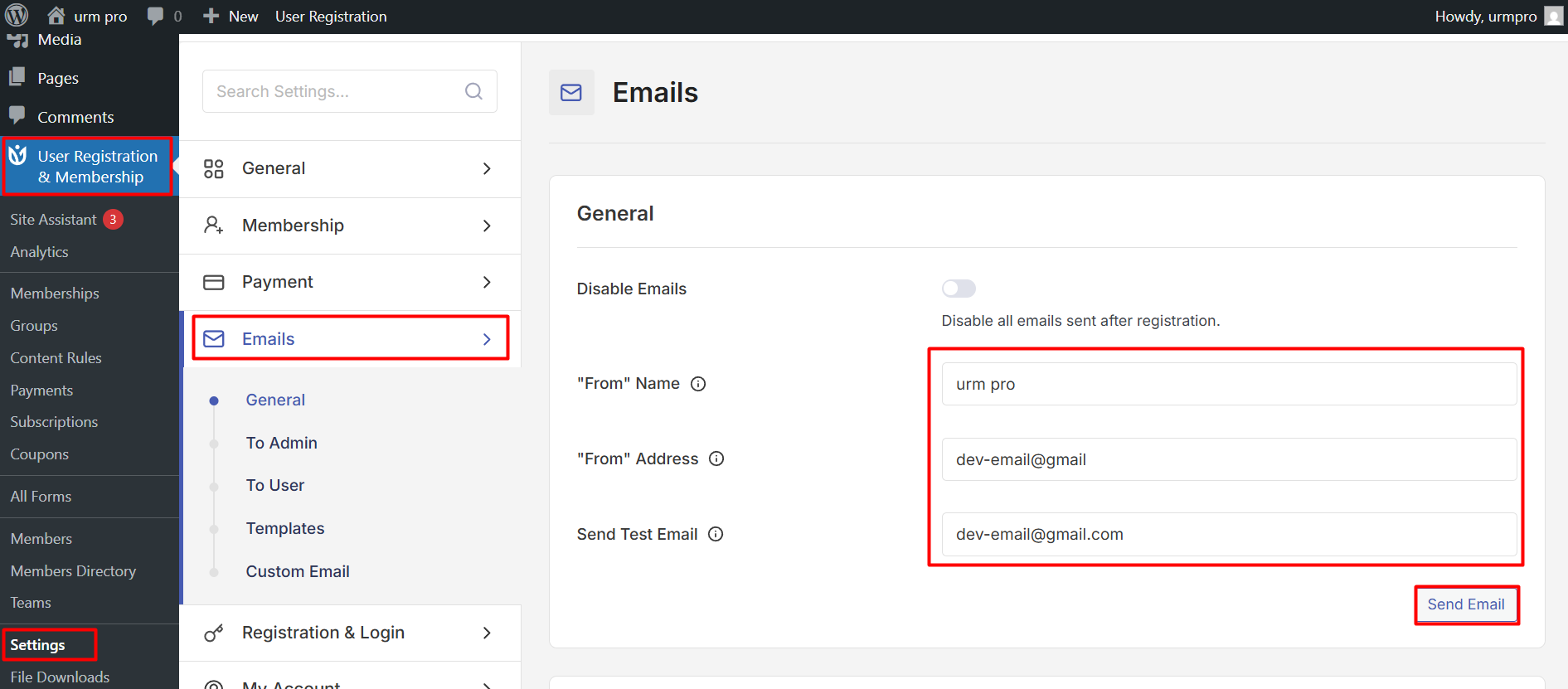
The test email will be sent using your current email configuration settings, including the From Name and From Address you've specified.
Verifying Email Delivery
Once you've sent the test email, check the inbox of the email address you entered. If the email arrives successfully, your email settings are working correctly.
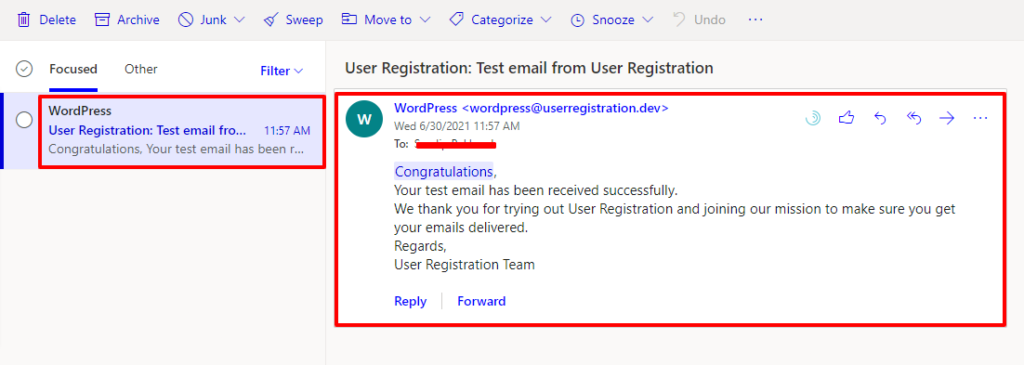
If you don't receive the test email, check your spam or junk folder. Email providers sometimes filter automated emails, especially if they contain certain words or phrases in the subject line.
Troubleshooting Email Delivery Issues
If the test email doesn't arrive in your inbox or spam folder, there may be an issue with your server's email configuration. Here are some common solutions:
Use an SMTP plugin: WordPress uses the PHP mail() function by default, which many hosting providers block or restrict. Installing an SMTP plugin like SmartSMTP can improve email deliverability by sending emails through a dedicated email service provider like Brevo, Gmail, or a custom SMTP server.
Check email logs: Install the Check & Log Email plugin to monitor email delivery. Go to Check & Log Email → Email Logs to see if emails are being sent from your site. A green checkmark means the email was sent successfully from WordPress, but it doesn't guarantee delivery to the recipient's inbox.
Contact your hosting provider: If emails still aren't being delivered, your hosting server may have disabled the PHP mail() function or blocked outgoing emails. Contact your hosting provider to verify that email sending is enabled.
That's it! Now you know how to send a test email and troubleshoot delivery issues. Next, would you like to learn how to customize your email templates? Be sure to check out our guide on customizing email content for more details.