View Categories

Membership Groups

Membership Groups in the User Registration and Membership plugin let you bundle multiple related membership plans, offering better control over presentation, upgrade paths, and overall organization.

With this feature, you can:

  • Group related membership plans to organize plans by access level or function (e.g., Silver, Gold, Platinum).
  • Allow users to upgrade between plans within the same group (e.g., from Gold to Platinum).
  • Enable multiple membership plans to allow users to purchase two or more plans belonging to the same group simultaneously.
  • Display membership options clearly on your site using shortcodes or blocks, making it easier for users to choose the right plan.

Membership Groups Features Based on License #

The functionality of Membership Groups depends on your User Registration and Membership license:

Free Version / Personal License #

  • Basic grouping of membership plans into groups for better organization.

Plus and Professional License #

  • Multiple Memberships: Allow users to purchase multiple membership plans at once.
  • Upgrade Action: Enable users to upgrade from one plan to another within the group (e.g., from Silver to Gold or Gold to Platinum).
  • Upgrade Path Control: Define a clear upgrade sequence between related plans, ensuring users follow a logical upgrade path.

How to Create and Edit Membership Groups #

Step 1: Access the Membership Groups Page #

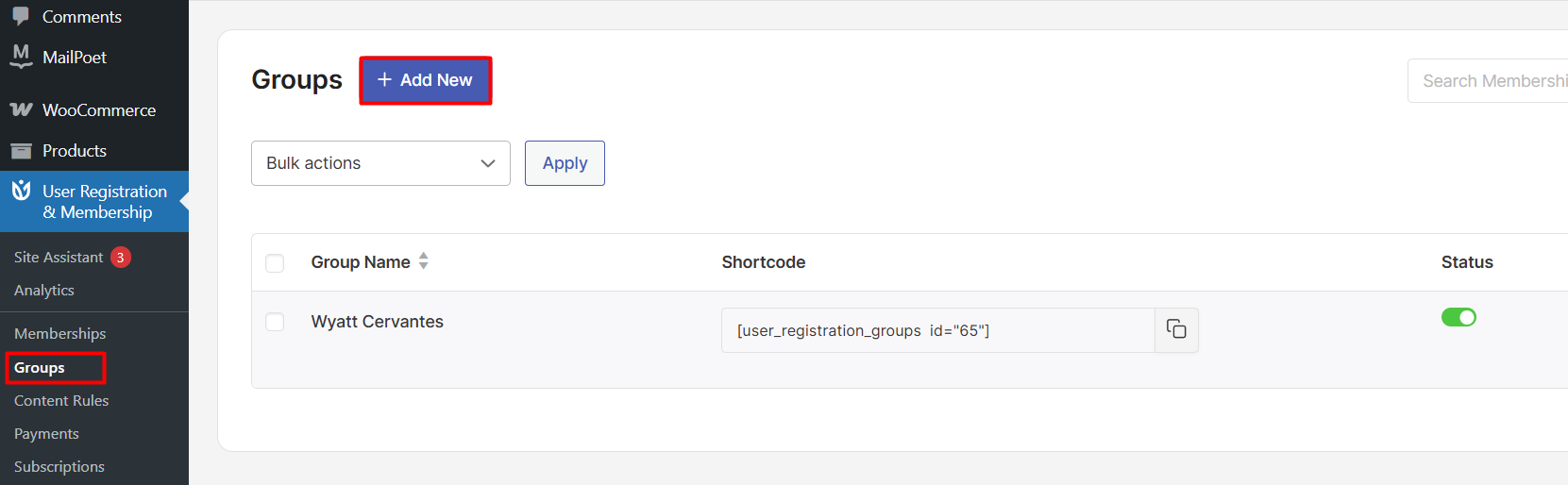
  1. In your WordPress admin panel, go to the User Registration & Membership > Memberships menu.
  2. Click Create Group.
Accessing Create Membership Group Option in User Registration and Membership plugin

This opens the Membership Groups page where all groups are managed.


Step 2: Add a New Membership Group #

  1. On the Groups page, click Add New.
  2. You will be redirected to the group configuration screen.
Membership Groups Dashboard - User Registration and Membership plugin

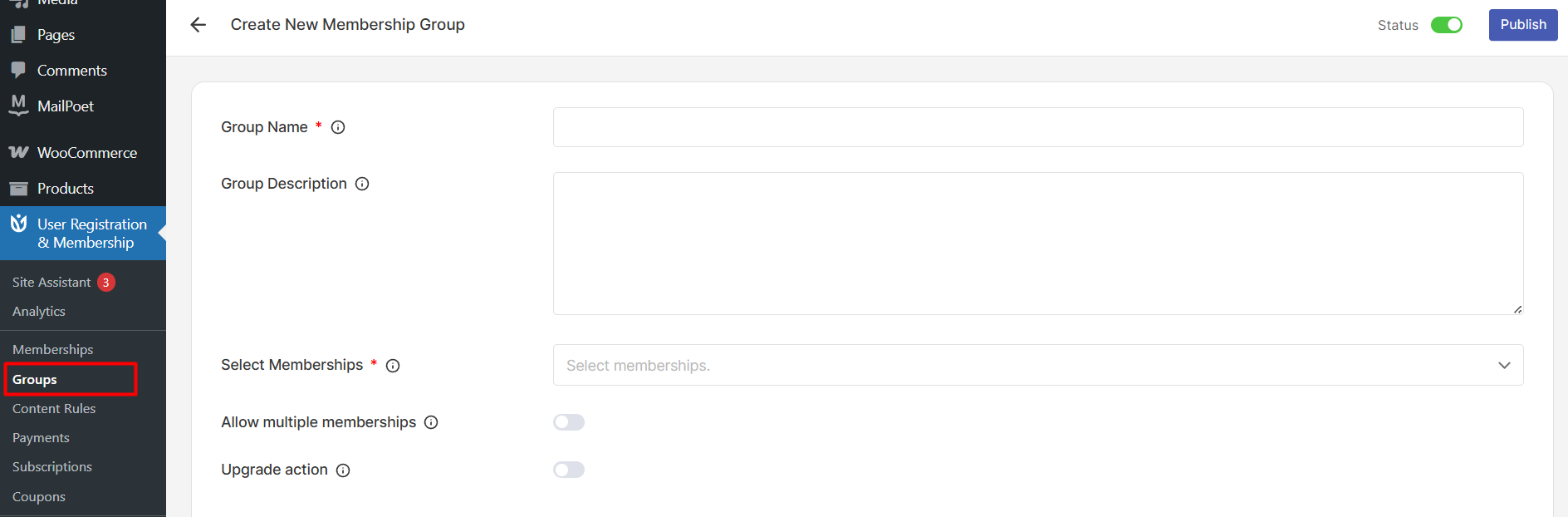
Step 3: Configure the Membership Group #

Fill in the required details:

  • Group Name: Name your group (e.g., “Aspiring Coders”).
  • Group Description: Explain the purpose of the group (e.g., “All plans for coding students”).
  • Select Memberships: Choose which membership plans you want to add to this group from the dropdown (e.g., Platinum, Gold, Silver).
Publishing new membership group in User Registration and Membership plugin

Once configured, click Publish.


Managing Membership Plans Within a Group (Plus and Professional) #

For PRO Plus and higher versions, you get additional controls to fine-tune how users interact with the membership plans in your groups.

  • Allow multiple memberships
  • Upgrade action
Additional Membership Group Features in Plus and Professional License

Important: You cannot enable Allow Multiple Memberships and Upgrade Action at the same time within a single group.
If Upgrade Action is enabled, users will only be allowed to upgrade between plans within the same group, not purchase multiple plans simultaneously.

Allow Multiple Memberships #

This option allows users to purchase more than one group membership plan at the same time.

Allow multiple membership toggle - User Registration and Membership plugin

When enabled:

  • Users can buy multiple plans in the group.
  • Example: A user can purchase both Gold and Platinum in the Aspiring Coders group.

When disabled:

  • Users can purchase only one plan per group.

Upgrade Action #

Upgrade Action allows users to upgrade from one plan to another within the same group.

Example:

  • Silver → Gold
  • Gold → Platinum
Upgrade Action Features in Membership Group - User Registration and Membership

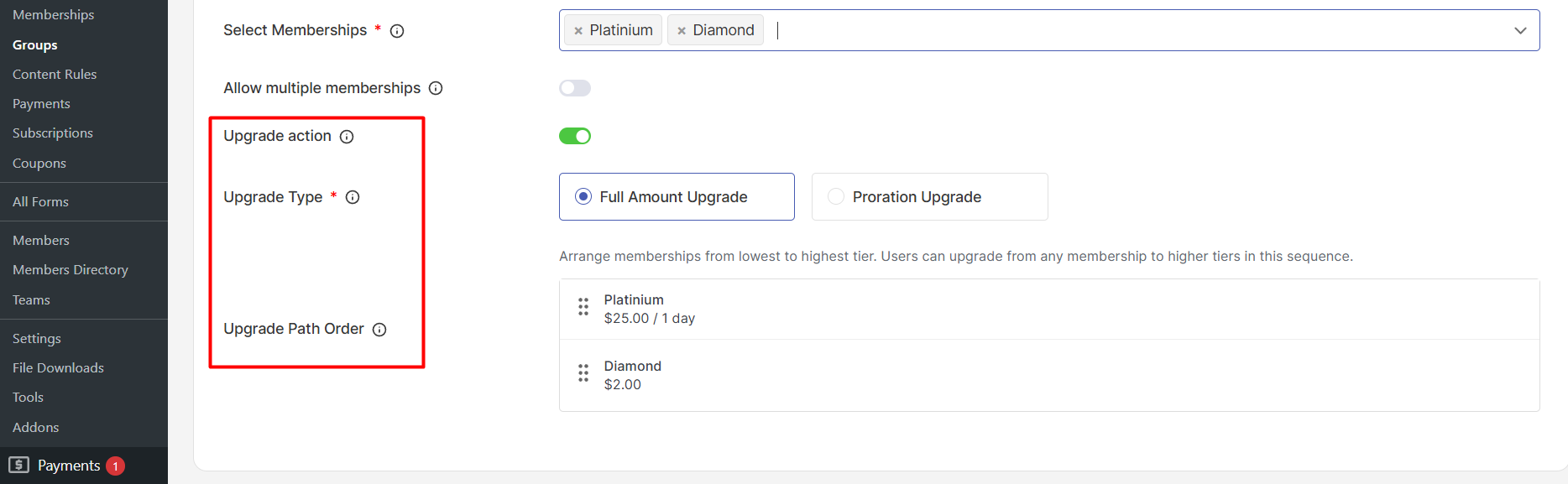
When Upgrade Action is enabled, two additional settings appear:

  • Upgrade Type: Choose how upgrade pricing should be calculated:
    • Full Amount Upgrade: Users pay the full price difference when upgrading to a higher-tier plan.
    • Proration Upgrade: Users pay the difference based on the remaining time on their current plan.

Example: A user on the Gold Plan can upgrade to the Platinum Plan, paying either the full price difference or the prorated amount based on how much time is left on the Gold plan.

  • Upgrade Path Order: Defines the order in which users can upgrade between plans (e.g., Silver → Gold → Platinum). This ensures that users can only upgrade to the next available plan in the group.

How to Allow Multiple Memberships #

For Pro Plus and above licenses, you can enable users to purchase multiple membership plans within the same group. This gives users access to multiple benefits simultaneously.

Step 1: Enable Multiple Memberships #

Go to User Registration & Membership > Groups and locate the Membership Group you want to edit.

Selecting Edit Group Option - User Registration and Membership plugin

In the Edit Membership Group screen, enable the Allow Multiple Memberships toggle and click Save.

Allow Multiple Membership subscription per member in user registration and membership plugin

Users will be able to purchase multiple plans from the group. For example, a user could purchase both the Gold and Platinum memberships within the Aspiring Coders group.


How Members Can Subscribe to Multiple Memberships #

When Allow Multiple Memberships is enabled for a group:

  • Users cannot select multiple memberships during registration
  • A user must first:
    1. Register an account
    2. Purchase their first membership
    3. Log in to their account

Once logged in:

  • The user can visit the membership listing page
  • They can purchase additional plans from the same group
  • Each new membership is added to their account
Subscribing to multiple plans within a membership group - User Registration and Membership

Important Behavior #

  • Multiple memberships are purchased separately
  • Users must complete checkout for each plan
  • The system does not combine multiple memberships into a single checkout

Example (Aspiring Coders Group) #

If the group contains:

  • Silver
  • Gold
  • Platinum

A logged-in user could:

  1. Purchase Gold
  2. Later return and purchase Platinum
  3. Have both memberships active at the same time

How to Create an Upgrade Path #

Upgrade paths guide users through a logical progression of membership plans (e.g., from SilverGoldPlatinum). This ensures users can only upgrade through the predefined order.

Step 1: Enable Upgrade Action #

Go to User Registration & Membership > Groups and locate the Membership Group you want to edit.

Selecting Edit Group Option - User Registration and Membership plugin

In the Group Settings, toggle the Upgrade Action to Enable.

Step 2: Choose Upgrade Type #

Full Amount Upgrade vs Proration Upgrade - User Registration and Membership

Choose between the following options:

  • Full Amount Upgrade – Users pay the full price difference when upgrading to a higher plan.
    For example, upgrading from Gold to Platinum would require the user to pay the full price difference between the two plans.
  • Proration Upgrade – Users pay the price difference based on the remaining time on their current plan.
    For example, if a user has 1 week left on their Gold plan and upgrades to Platinum, they would pay only the difference for the remaining time on the Gold plan.

Step 2: Define the Upgrade Path #

  1. Under the Upgrade Path Order, you can arrange your membership plans from top to bottom in the order users can upgrade through them (e.g., Silver → Gold → Platinum).
  2. Save the changes.
Upgrade Path Ordering in Group Membership - User Registration and Membership

This ensures that users can only upgrade to the next available plan in the path.


How Members Can Upgrade Their Membership Plan #

When Upgrade Action is enabled:

  • Users cannot upgrade during registration
  • Users must already have an active membership within the group
  • Upgrades are performed from the user dashboard/account page

Upgrade Process #

Upgrading to higher plans with a membership group - User Registration and Membership
  1. User purchases a membership (e.g., Gold).
  2. User logs in to their account.
  3. On the account/dashboard page, the system shows an Upgrade option.
  4. The user selects the next available plan in the upgrade path (e.g., Platinum).
  5. The system calculates the price based on:
    • Full Amount Upgrade, or
    • Proration Upgrade
  6. User completes checkout for the upgrade.

Important Behavior #

  • Users can only upgrade to the next plan defined in the Upgrade Path
  • Users cannot downgrade using Upgrade Action
  • Users cannot purchase multiple plans when Upgrade Action is enabled
  • Upgrade is available only while the current membership is active

How to Display Membership Groups #

Once your Membership Groups are set up, you can display specific groups and their associated plans on your site using

  • Shortcodes
  • Membership Pricing block.

1. Membership Groups Shortcode #

Each group has its own shortcode to display the membership plans within that group.

How to Find and Copy the Shortcode for a Specific Group

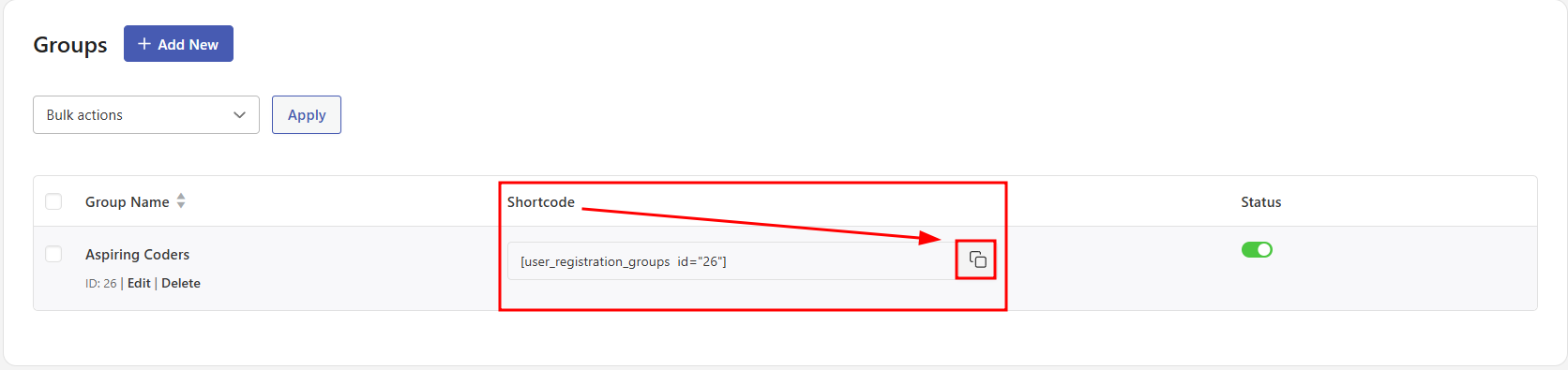
Go to User Registration & Memberships > Groups in your WordPress admin panel. On the Membership Groups page, locate the group you want to display.

In the Shortcode column next to the group, you’ll find the shortcode related to that specific group (e.g., [user_registration_groups id="26"]).

Click the Copy Shortcode button next to the group to copy the shortcode to your clipboard.

Copying Shortcode related to Membership Group

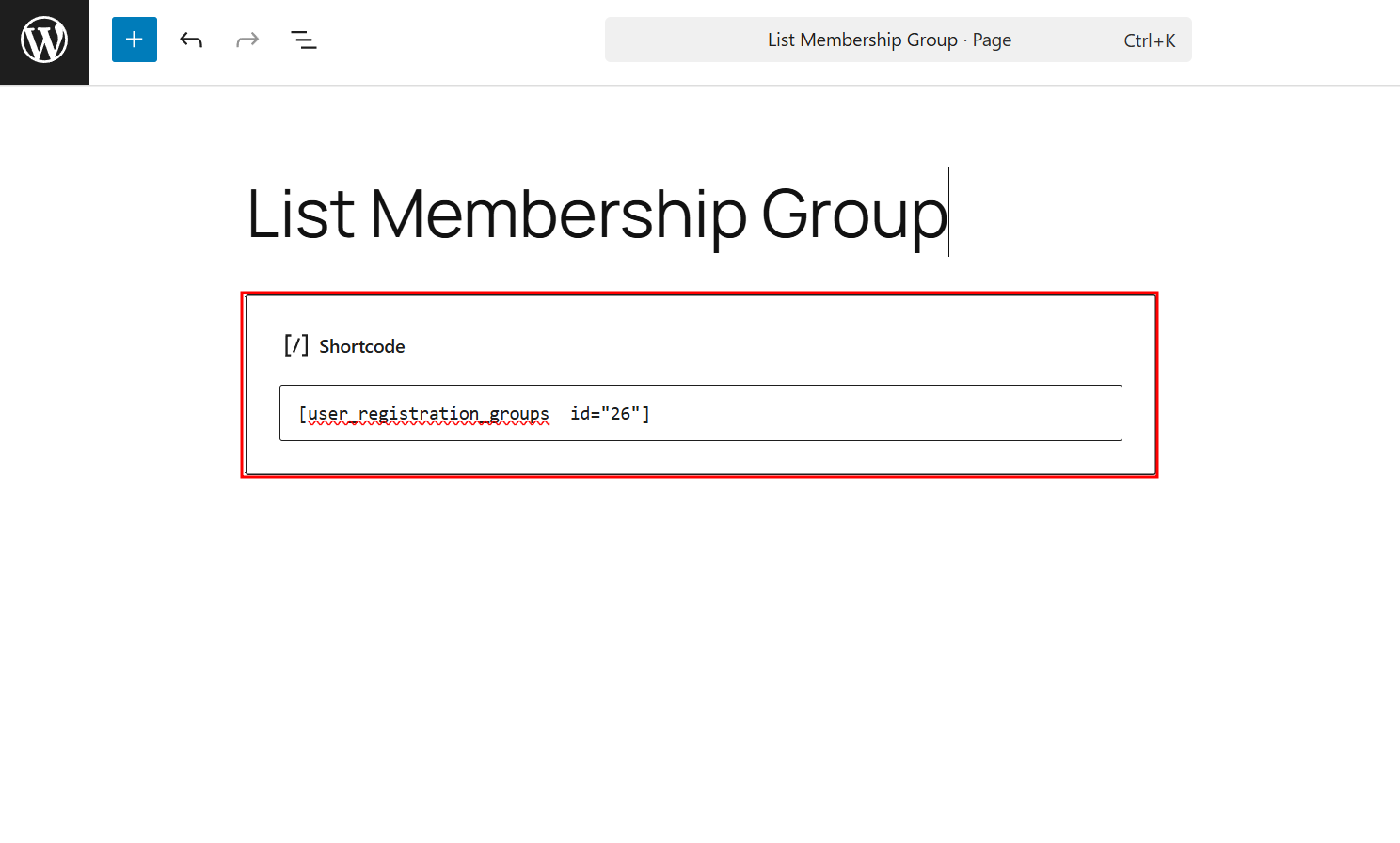
Paste the copied shortcode into any page or post where you want to display the associated plans of that group.

Using Membership Group Shortcode - User Registration and Membership

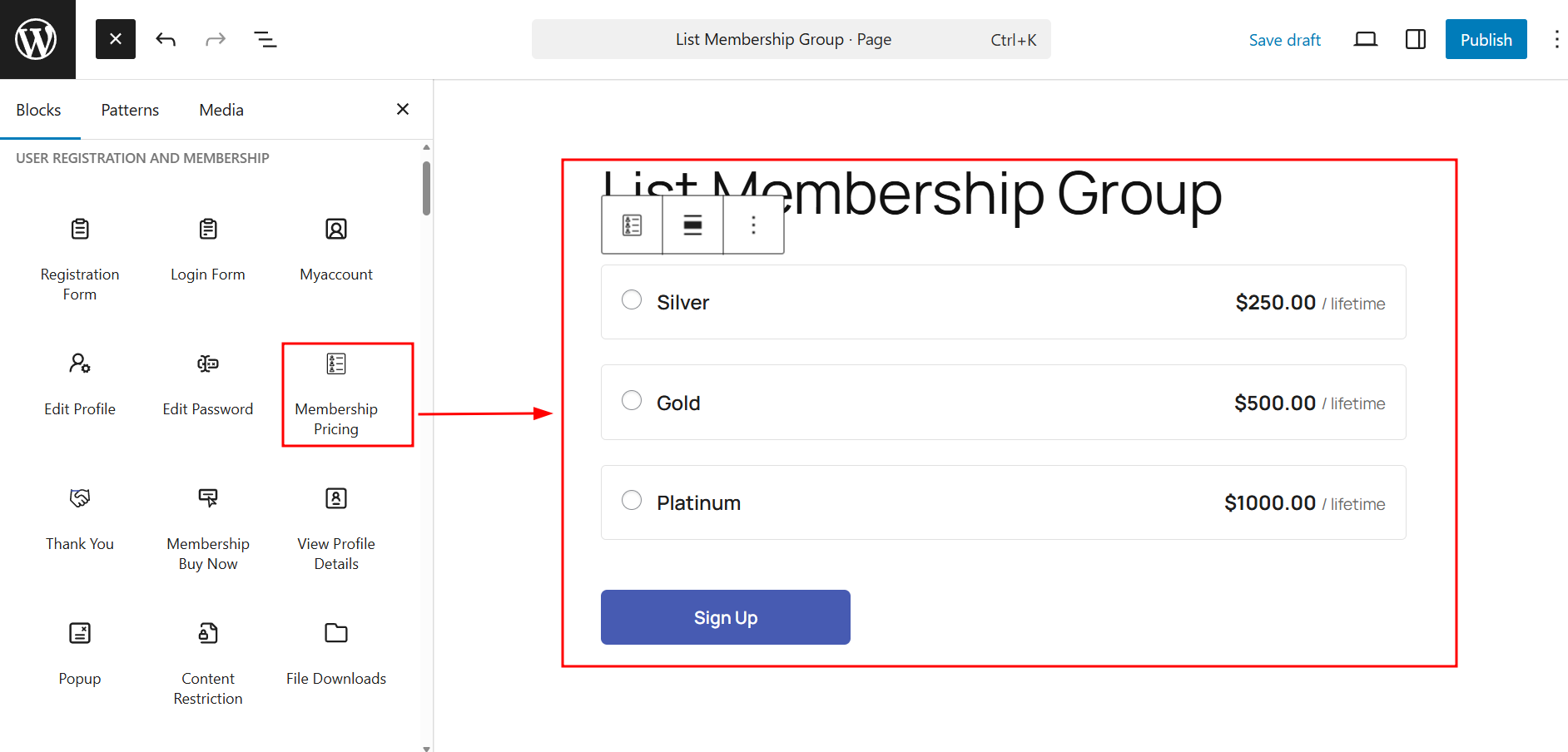
Membership Pricing Block #

The Membership Pricing block allows you to display a specific group and its associated membership plans on any page or post.

Add the Membership Pricing block to a page or post using the Gutenberg editor.

Adding Membership Pricing Block to a Page - User Registration and Membership

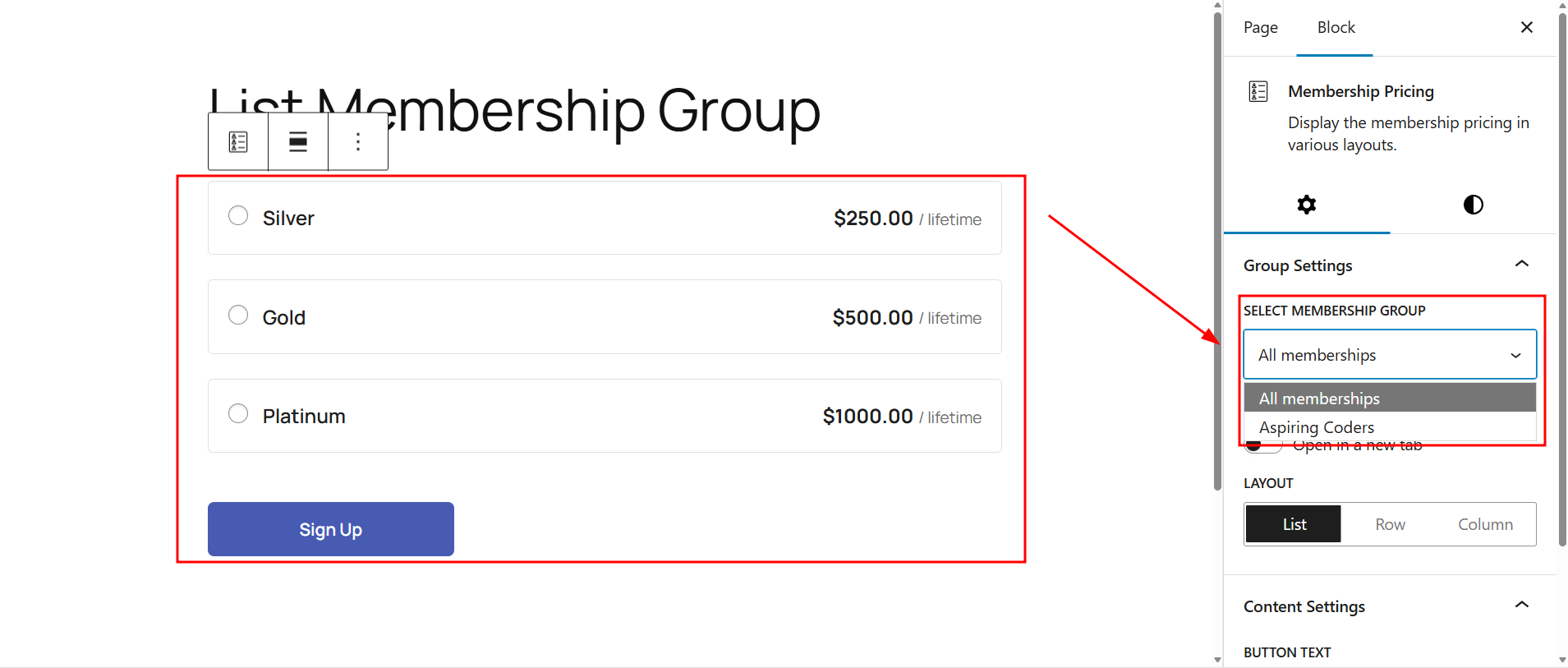
In the block settings, select the Membership Group you want to display.

Selecting Membership Group in Membership Pricing Block

This block is helpful for targeted displays of plans from specific groups on different pages.

For more block-specific settings, refer to the dedicated Membership Pricing Block documentation.


Summary of Membership Groups Features by License #

FeatureFree VersionPro Personal LicensePro Plus and Above License
Basic Grouping of Memberships
Multiple Memberships in Group
Upgrade Action
Upgrade Path Control
Membership Group Shortcodes
Membership Pricing Block

Powered by BetterDocs

Scroll to top