OverView #
Unlock the full potential of checkbox fields using four powerful settings: Choice Limit to manage selections, Select All for easy selection of all options, Bulk Add Options to speed up adding choices, and Image Choices to enhance visual engagement. These features ensure your forms are efficient, accurate, and user-friendly.
The following sections provide a detailed explanation of each feature, why it was introduced, and how it enhances the user experience.
Choice Limit #
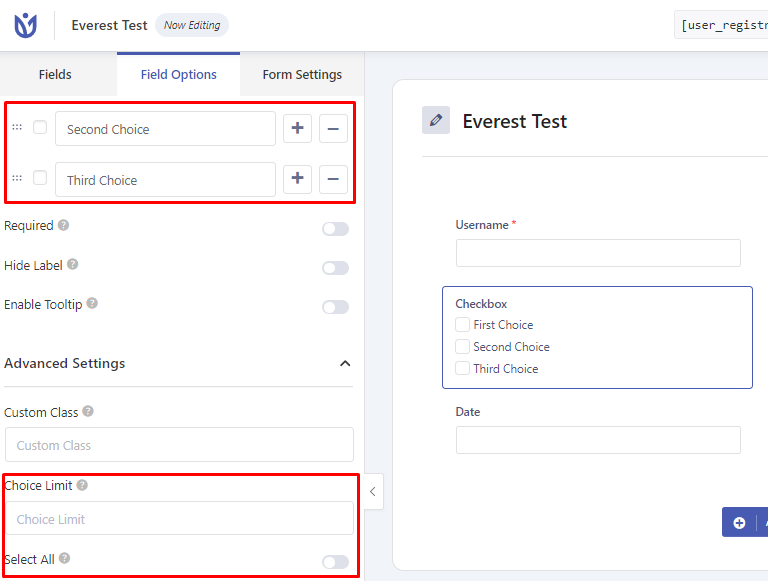
The Choice Limit option in URM forms lets you control and restrict how many choices a user can select. Without setting a limit, users may select more options than intended, which can cause inconsistent or unusable data.
What users can do:
- Restrict selection to a specific number of choices.
- Ensure correct selection in membership plans, course enrollments, or other registration scenarios.
- Prevent errors in plan or membership selections where only certain options are allowed.
By using Choice Limit, form creators can maintain data accuracy and improve user guidance.

In the example above, the Choice Limit is set to 2, which means users can select up to two options only.
Select All Option #
.The Select All feature was added to simplify form filling, especially when there are many options to choose from. It reduces repetitive clicks and ensures no option is missed.
What users can do:
- Select all available options with a single click.
- Quickly agree to multiple permissions or preferences.
- Trigger conditional logic tied to multiple selections at once.
This feature saves time, improves accuracy, and enhances the user experience on longer forms.

Bulk Add Options [Pro] #
Bulk Add was designed to make form creation faster and more consistent. Manually entering long lists of options is time-consuming and prone to errors.
What users can do:
- Add multiple checkbox options at once by pressing the Enter key after each option.
- Quickly build checklists without adding options one by one.
- Maintain consistency across forms by copying and pasting the same set of options.
Bulk Add reduces effort and helps speed up the form setup process.

Image Choices [Pro] #
Image Choices were added to make forms more visual and interactive. Text-only options may not always be clear or engaging, especially for products, menus, or design preferences.
What users can do:
- Select options represented by images instead of text.
- Make quicker decisions based on visual cues.
- Enhance accessibility for users who respond better to images.
Image Choices improve engagement, make forms easier to use, and provide a richer experience for respondents.