
Troubleshooting Plugin and Theme Conflict
Last updated on Jul 7, 2026
Conflicts in WordPress happen when plugins or themes interfere with each other or with the core system. These conflicts can cause features like registration forms, admin settings, or front-end functionality to break. This guide will help you identify and fix conflicts safely, even if you're a beginner.
⚠️ Before You Start – Key Precautions
Back up your site — always create a backup before troubleshooting.
Use a staging site if possible — this avoids affecting live users.
Admin access required — you need administrator rights to perform these steps.
1. Understanding Conflicts
A conflict occurs when:
Two plugins try to do the same thing.
A plugin and theme are incompatible.
A plugin is outdated or not coded to current WordPress standards.
Symptoms of a conflict:
Registration, login forms, etc., features stop working.
Form builder and admin features fail.
Errors appear on the site, or specific pages don't load.
2. Checking for a Theme Conflict
Sometimes the issue is caused by your active theme.
Steps to Test Theme Conflicts
Log in to your WordPress dashboard.
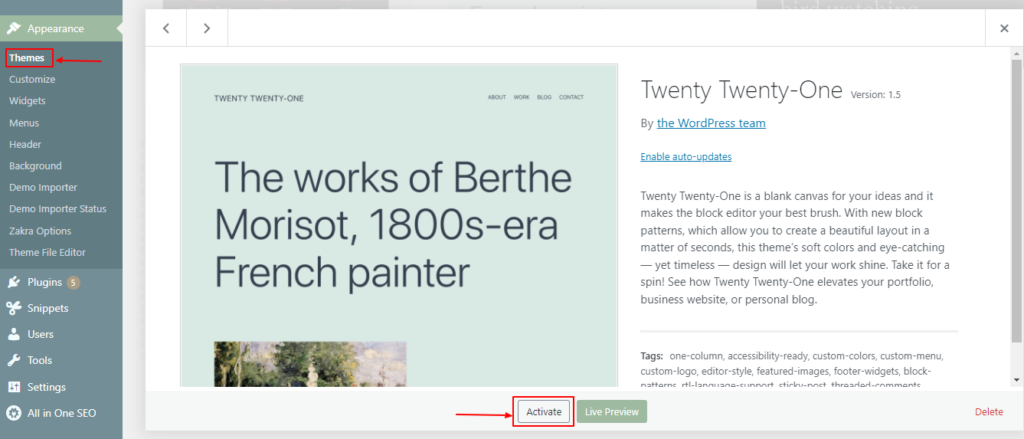
Navigate to Appearance → Themes.
Activate a default WordPress theme (e.g., Twenty Twenty-One).
Test the functionality (e.g., the registration form and the admin page).
Interpretation:
If the issue disappears, your theme is likely the cause.
If the issue persists → the conflict is probably a plugin.
💡 Tip: Always test using a staging site or in an incognito browser to avoid caching issues.
3. Checking for Plugin Conflicts
There are two main ways to test for plugin conflicts:
Using the Health Check & Troubleshooting Plugin (Recommended )
This method is safe for live sites because it only affects logged-in admins, leaving visitors unaffected.
Best for:
Registration forms.
Admin-side plugin settings.
Not suitable for:
Login forms or front-end issues are visible to non-admin users. Regular visitors cannot see changes to troubleshooting mode.
Steps to Use Health Check
Go to Plugins → Add New.
Search for Health Check & Troubleshooting, then Install and Activate.
Navigate to Tools → Health Check → Troubleshooting.
Click Enable Troubleshooting Mode.
By default, all plugins are disabled, and a default theme is activated for your admin view only.
Enable only the User Registration & Membership plugin.
Test the issue.
Enable other plugins one by one and test after each activation.
The plugin that triggers the issue is likely the one causing the conflict.
Exit Troubleshooting Mode to restore the normal site view.
💡 Tip: Use an incognito window so cached content does not affect testing.

Manual Plugin Activation/Deactivation
This method works for both front-end and admin issues.
Steps:
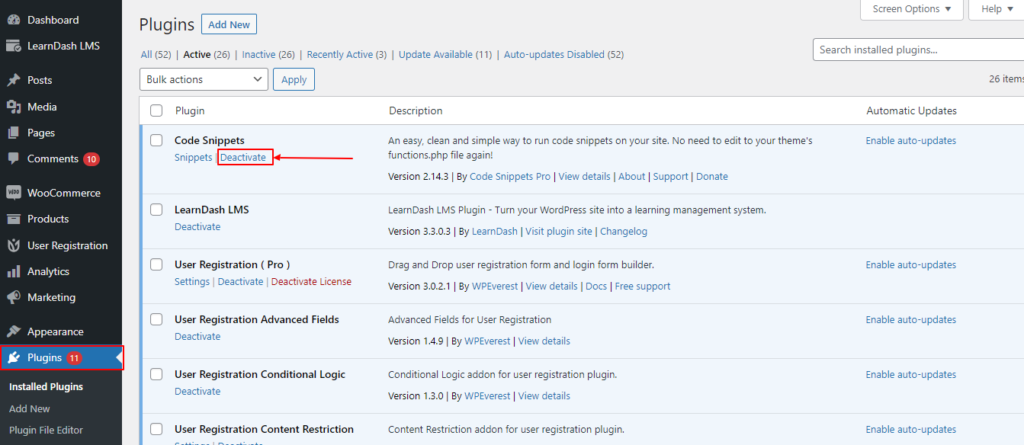
Go to Plugins → Installed Plugins.
Deactivate all plugins except the one you are testing.
Test the site or specific feature.
If the issue is gone → one of the deactivated plugins caused the conflict.
Activate plugins one by one, testing after each activation.
When the issue reappears, the last activated plugin is likely the cause of the conflict.
⚠️ Important: On a live site, do not deactivate essential plugins (security, caching) without a backup.
Using FTP or cPanel for Fatal Errors
Sometimes activating a plugin causes a critical error, and the site stops loading.
Steps:
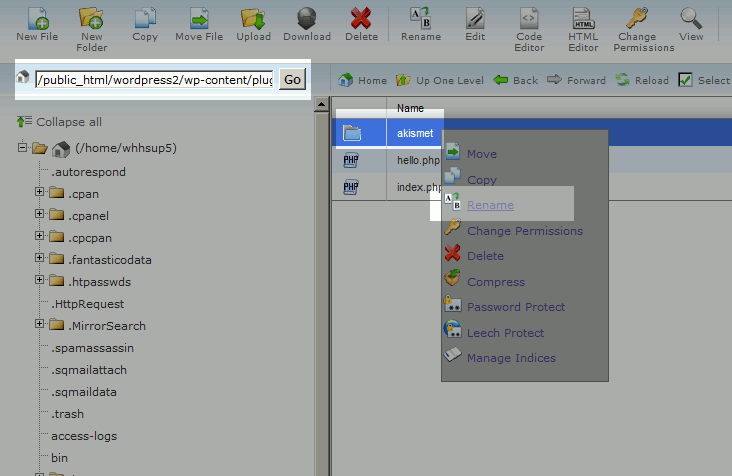
Log in to cPanel or use an FTP client.
Navigate to public_html → wp-content → plugins.
Rename a plugin folder (e.g., user-registration → user-registration-disabled).
Refresh your site — if it loads, that plugin caused the error.
Rename back if needed to reactivate after troubleshooting.
💡 Example: If the User Registration & Membership plugin conflicts with another plugin, renaming its folder temporarily deactivates it and restores site access.
4. Testing Login and Front-End Issues
For login forms or other front-end functionality:
Health Check mode won’t show these issues because it only affects admins.
Use manual plugin deactivation or a staging site to reproduce and test the problem safely.
Always clear the browser cache or use incognito mode after each change.
5. WordPress Debug Mode (Optional for Advanced Users)
If you're still unsure where the conflict occurs:
Open wp-config.php.
Add or change:
define('WP_DEBUG', true);
define('WP_DEBUG_LOG', true);
WordPress logs errors to /wp-content/debug.log.
Check this log to see which plugin or theme is causing issues.
💡 Tip: Turn off debug mode after troubleshooting by setting WP_DEBUG it back to false.
6. Summary Checklist
7. Final Tips
Always backup before troubleshooting.
Test one change at a time.
Use incognito windows to avoid caching issues.
Report conflicts to plugin/theme authors if possible.
For login/front-end issues, use a staging site for safe testing.