
Add Columns in the Member Dashboard
Code example demonstrating how to add custom registration form fields as columns in the WordPress user management dashboard using filters.
Last updated on Jul 15, 2026
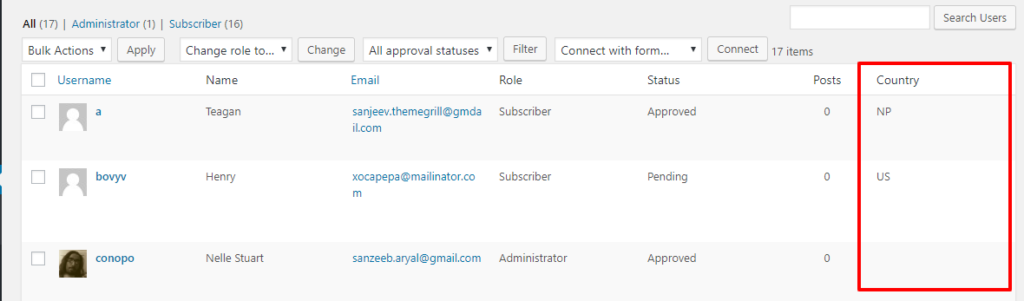
This example code will add the additional Country field from the registration form and its value. Expected Result:
add_filter( 'manage_users_columns', 'ur_add_column_head' );

add_filter( 'manage_users_custom_column', 'ur_add_column_cell', 10, 3 );

/**

* Add the column header

*

* @param array $columns

*

* @return array

*/

function ur_add_column_head( $columns ) {

if ( ! current_user_can( 'edit_user' ) ) {

return $columns;

}

$columns['ur_extra'] = __( 'Country', 'user-registration' );

return $columns;

}

/**

* Set the Column value for each user in the users list

*

* @param string $val

* @param string $column_name

* @param int $user_id

*

* @return string

*/

function ur_add_column_cell( $val, $column_name, $user_id ) {

if ( ! current_user_can( 'edit_user' ) ) {

return false;

}

$val = '';

if ( $column_name == 'ur_extra') {

$val = get_user_meta( $user_id, 'user_registration_country_1543398649', true );

return isset( $val ) ? $val : '';

}

return $val;

}
Note that to get the value of the field you need to add the user_registration_ prefix and the field name of that specific field. For example in the above code. get_user_meta( $user_id, 'user_registration_country_1528783674', true );