
Restriction on File Downloads
ProEnable members to download files with access control based on membership levels, download limits, and custom restrictions.
Last updated on Jul 14, 2026
The File Downloads addon allows you to upload files and make them available to only your members based on their membership level or other conditions you define. You can organize files into categories, set download limits, and control exactly who can access them.
Prerequisites
User Registration & Membership Pro installed and activated
Plus or Professional plan subscription
License key activated
Content Restriction addon enabled (for access control)
At least one live membership created (for restrictions)
Activate the File Downloads Addon
Navigate to User Registration & Membership → Addons in your WordPress dashboard
Locate or search for File Downloads
Toggle to Activate
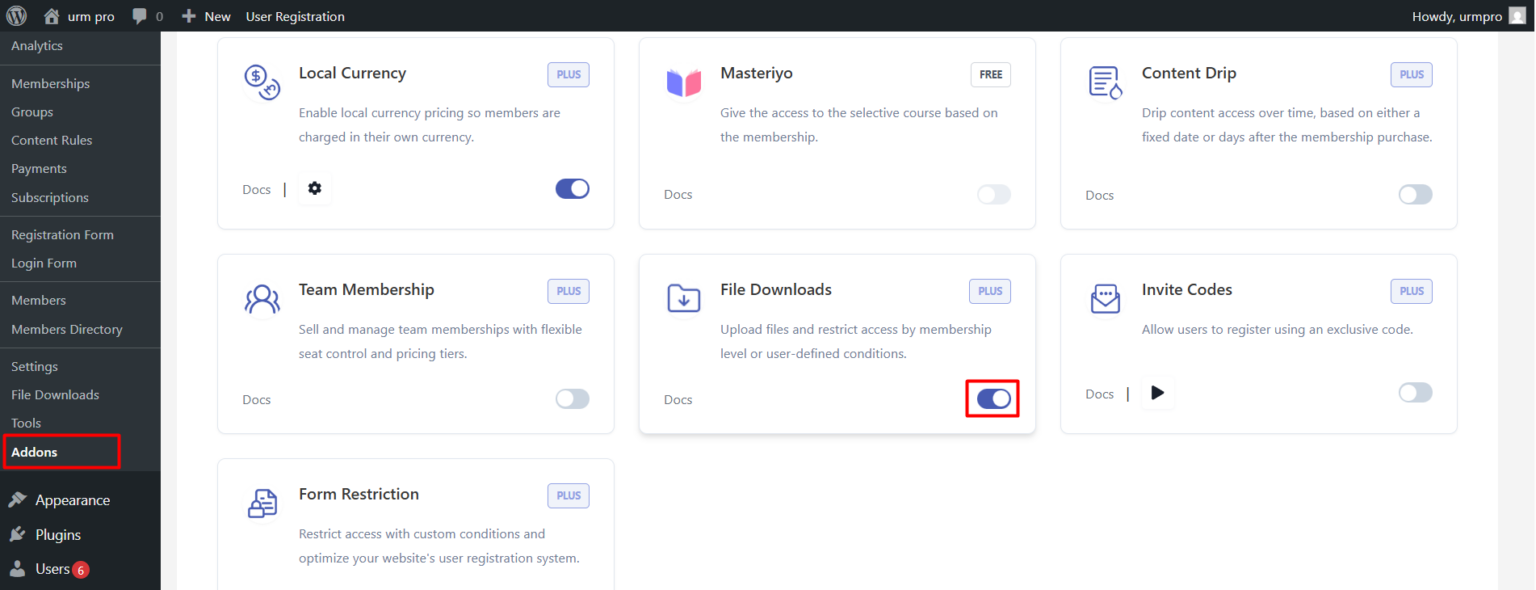
Add Your First File
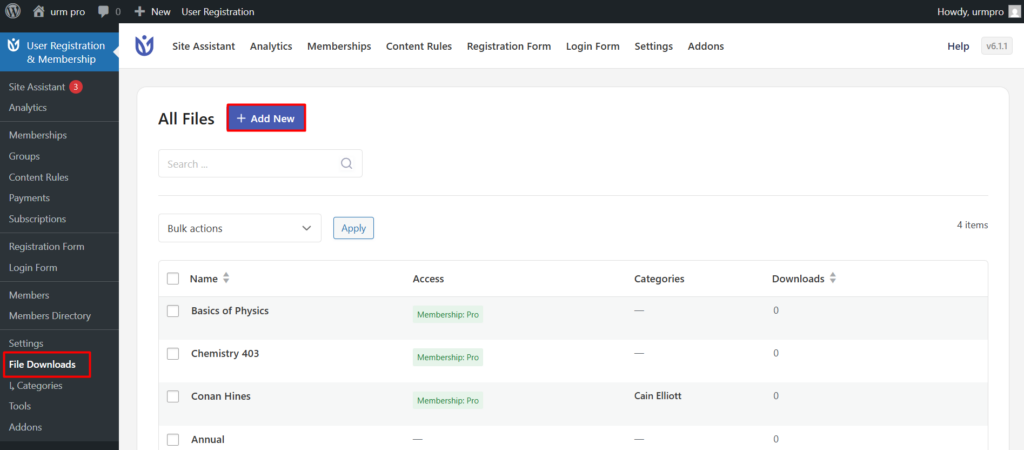
Once activated, a new menu item called File Downloads will appear in your dashboard.
To upload a file:
Navigate to User Registration & Membership → File Downloads
Click Add New
Enter a file title
Click the Choose File icon and upload your file
(Optional) Add a description to provide more context
Click Publish
Configure Download Limits
Download limits help manage bandwidth and control file sharing. When adding or editing a file, you can configure:
Per User Download Limit: Specify how many times each individual user can download the file
Total Download Limit: Set the total number of times the file can be downloaded across all users
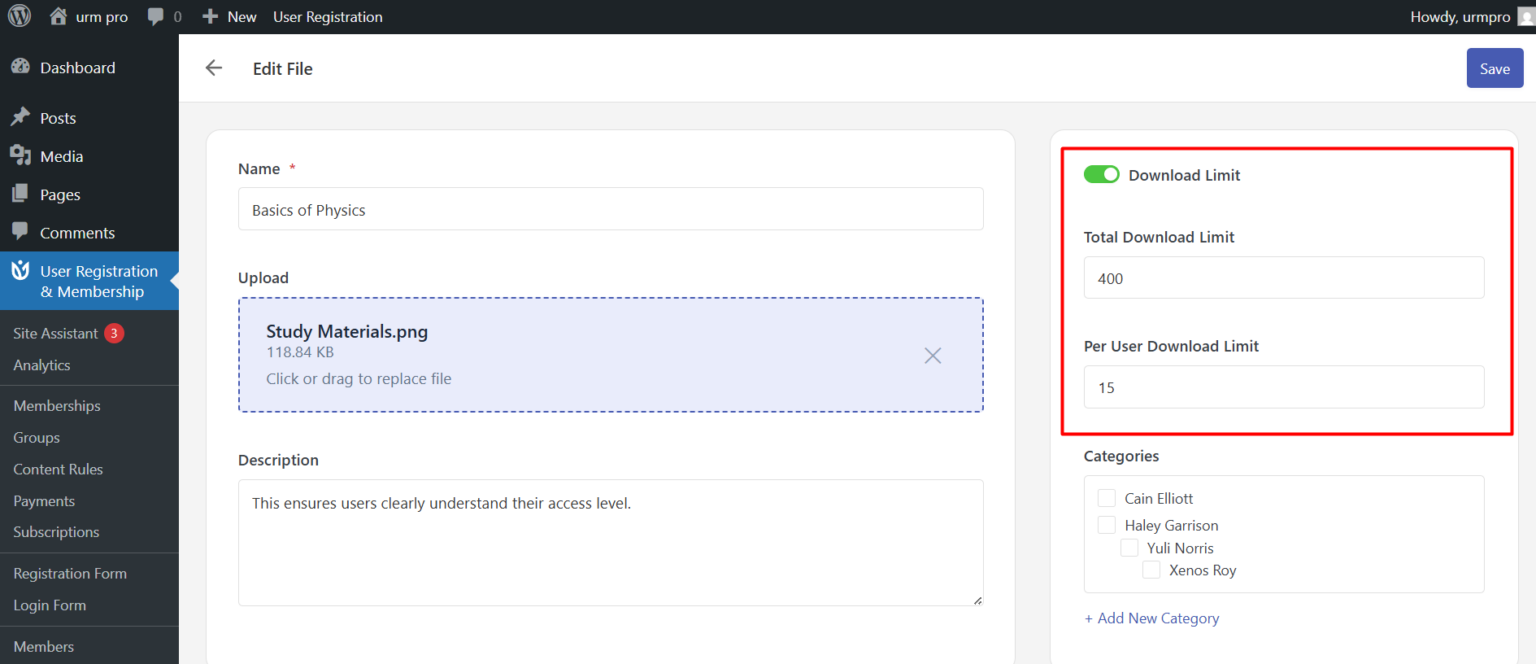
To enable download limits, click the toggle button when adding or editing a file, then set your desired limits.
Configure Category
Assign a category for your file. Useful while creating content restriction rules.
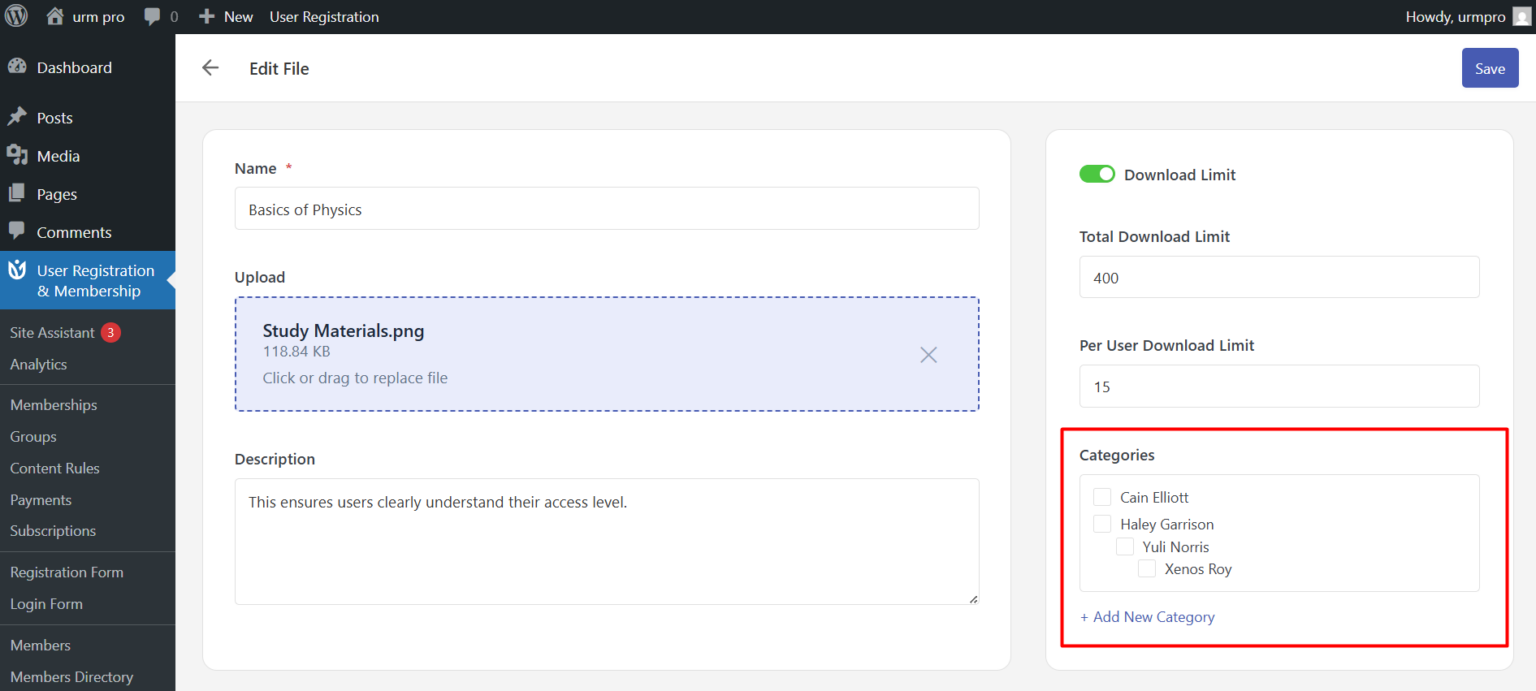
These settings help manage bandwidth and ensure files are shared in a controlled way.
Organize Files with Categories
Categories help you manage and group related files, such as templates, guides, or reports. They're also useful when creating content restriction rules.
To create a category:
Go to User Registration & Membership → File Downloads → Categories
Enter a category name and add a description
Enter a slug and (optional) parent category
Click Create
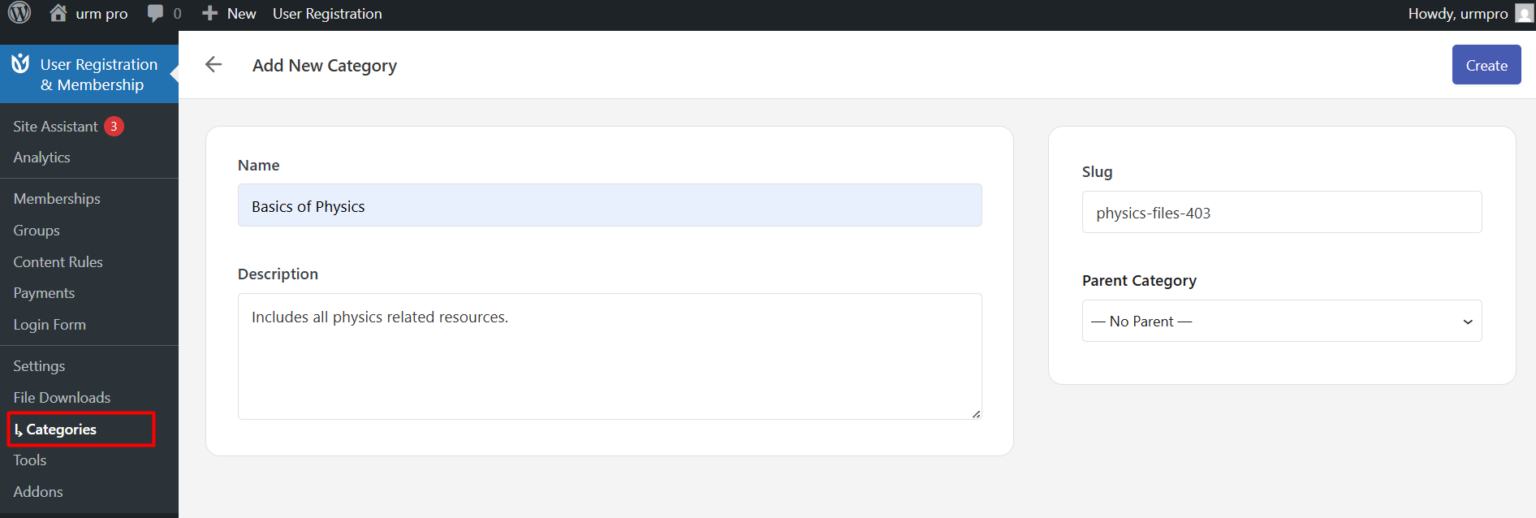
You can assign one or more categories when adding or editing a file.
Control Who Can Download Files
You can restrict file access based on membership level or other conditions using Content Rules.
To configure permissions:
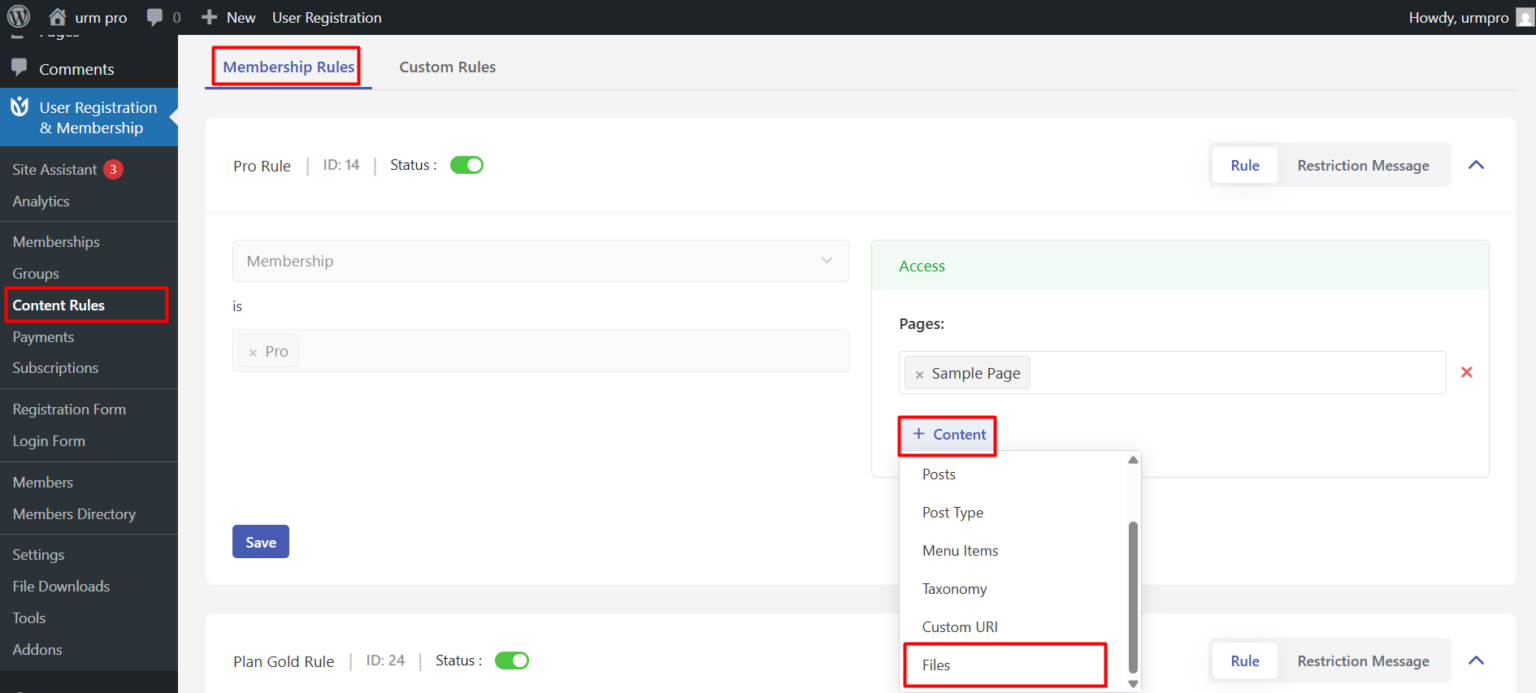
Go to User Registration & Membership → Content Rules
Under Membership Rules, select your preferred rule
Under Access, click Content and choose Files
Select the specific files or file categories you want to protect
Click Save
How Members Access Files
File Downloads in My Account
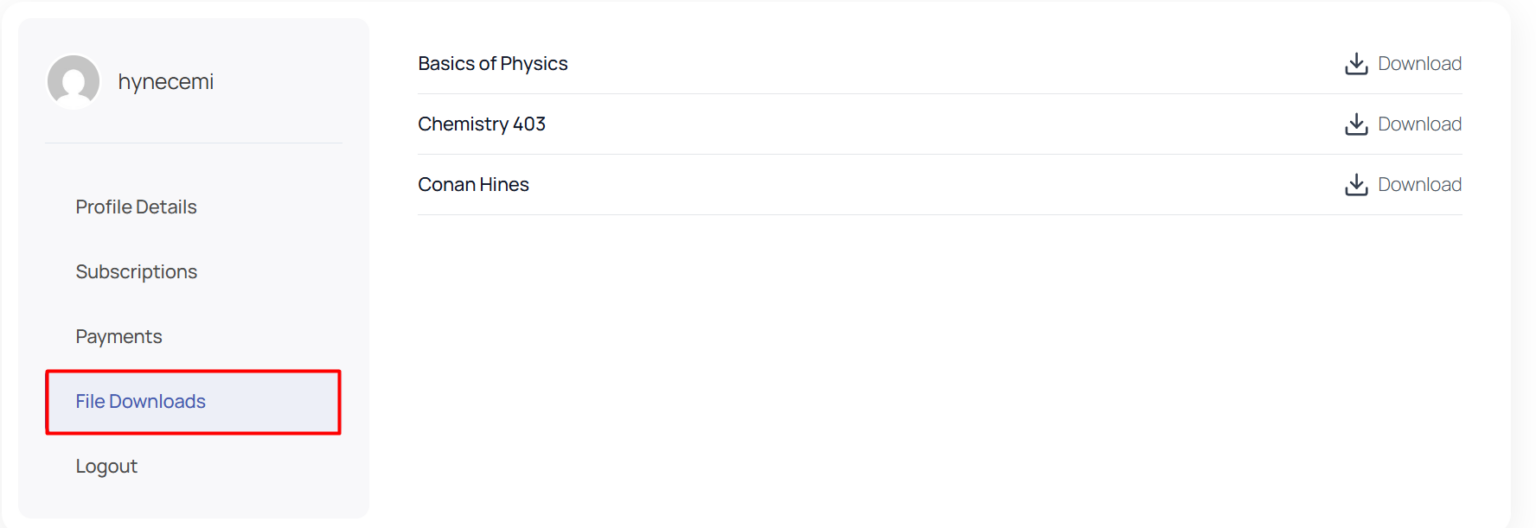
After activation, members will see a File Downloads tab inside their My Account area. This section automatically displays all files the logged-in user can download. Pagination is applied automatically for sites with many files.
What Users See
When users attempt to download a file:
If they have access, the download begins automatically
If they don't have access, they will see a message explaining the restriction and which membership is required
If they've reached a download limit, they will be notified of the limit
This ensures users clearly understand their access level.