Update Billing Details for WPEverest Purchase
Step-by-step guide to update payment methods, billing information, and manage saved cards for WPEverest subscriptions through FastSpring.
Last updated on Jul 14, 2026
To change your billing details and cards associated with the purchase.
Login to your account page
Once you are on your account page. Visit the Subscriptions tab.
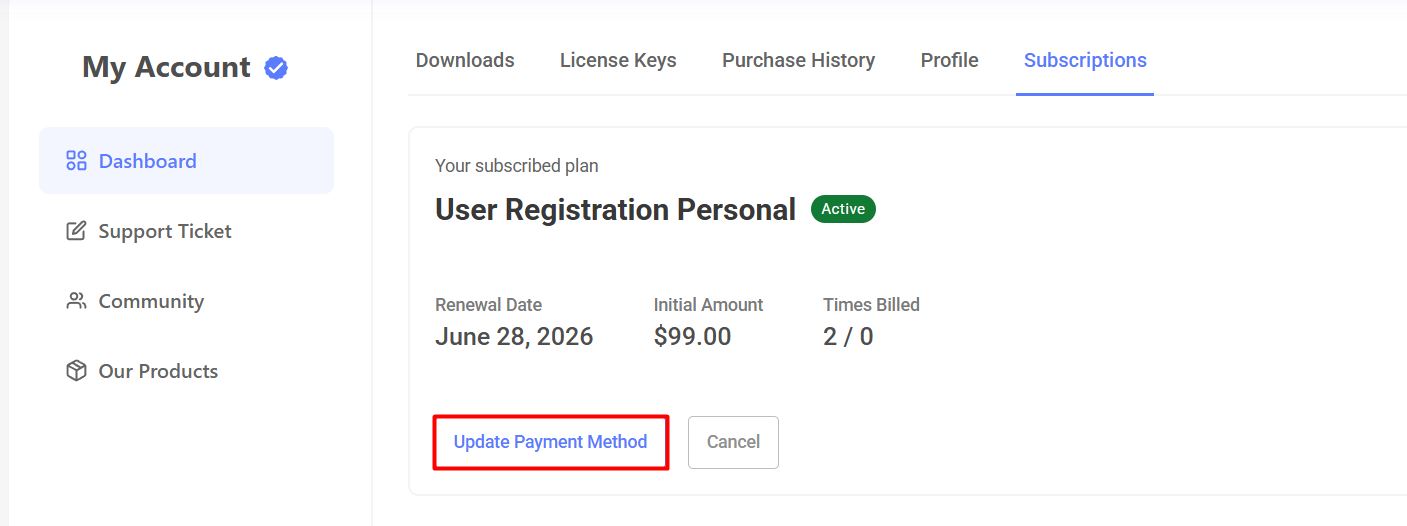
Click on Update Payment Method
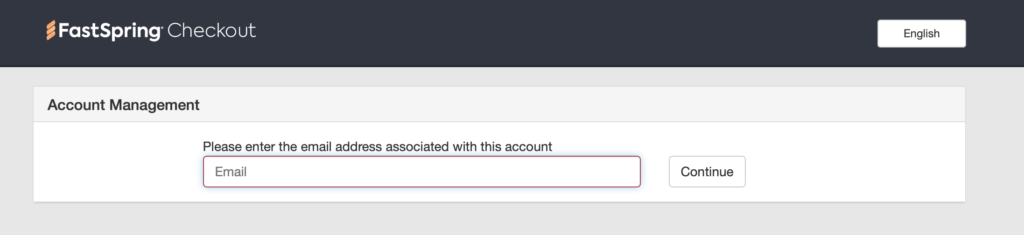
You will be redirected to our payment gateway page where you are asked to enter the email address associated with the purchase order. Enter the email address and click continue.
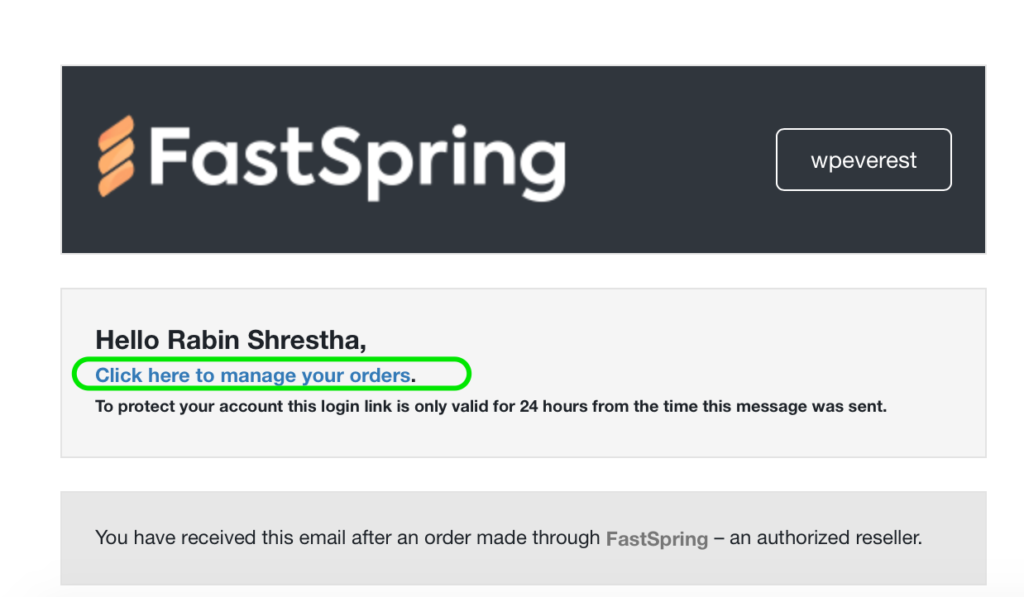
You will receive an email with a login link. Simply check your inbox, open the email and click the link “Click here to manage your orders“
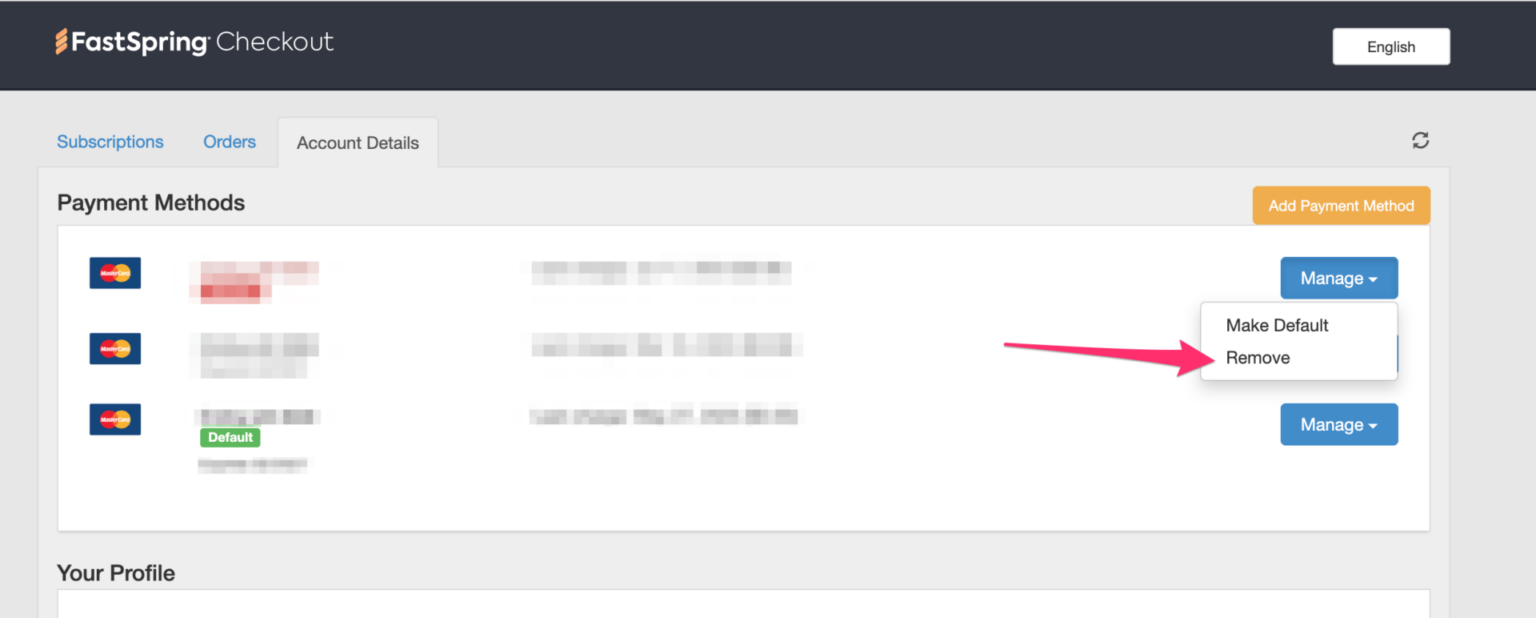
You will automatically be logged into the orders page of FastSpring. Click on the Account Details tab. If you want to add a new payment method then click on “Add Payment Method." You can also change the profile details if you want.
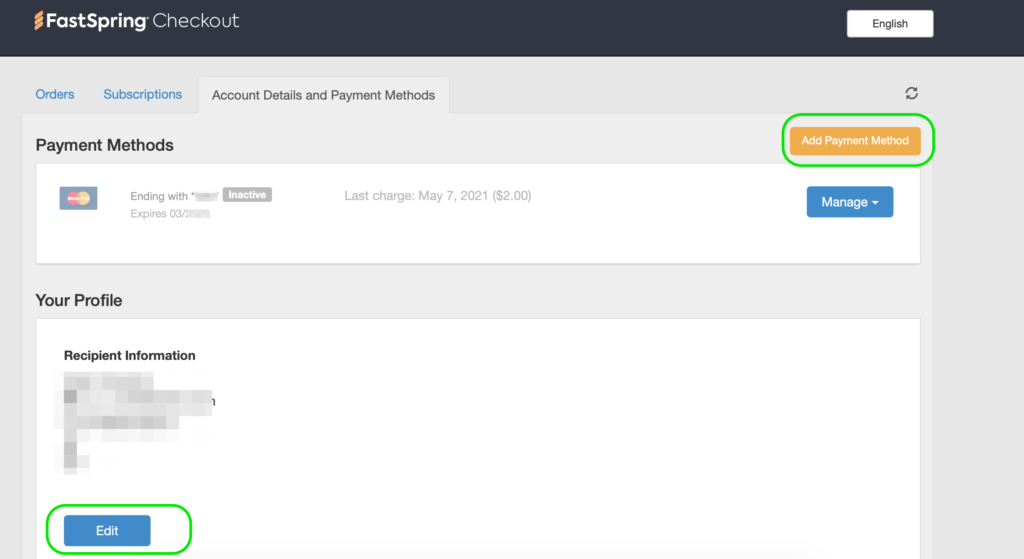
Manage Your Saved Cards in FastSpring
You can easily add or remove cards associated with your FastSpring account by following these steps:
Access Your Account
Visit FastSpring Account.
Enter the email address associated with your account.
A login link will be sent to your email. Click the link to access your FastSpring Dashboard.
Navigate to Account Details
Once logged in, go to Account Details.
You will see a list of cards you have previously added.
Manage Your Cards
Click Manage next to the card you want to update.
You have two options:
Make Default – Set this card as your primary payment method.
Remove Card – Delete the card from your account.
Visual Reference
Please refer to the attached screenshot for guidance on where to find the Manage option and how to perform these actions.