
Renew a Subscription Manually
Step-by-step instructions for manually renewing a canceled subscription through your account dashboard, from login to payment completion.
Last updated on Jul 14, 2026
If you have canceled auto-renewal for your subscription and need to renew it manually, you can do so directly from your account dashboard. This guide walks you through the manual renewal process.
Steps to Renew Your Subscription Manually
Step 1: Access Your Account
Log in to your account page using your credentials.
Step 2: Navigate to Subscriptions
Once logged in, go to Dashboard → Subscription tab
Locate your subscription in the list
In the Action column, click the Renew License link
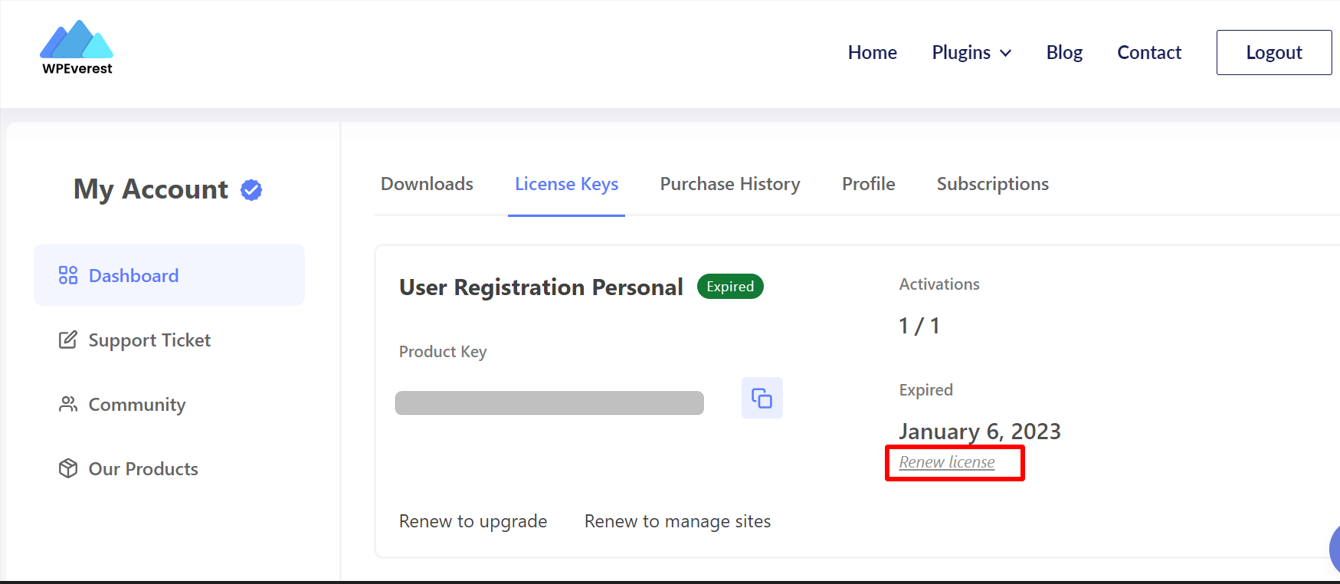
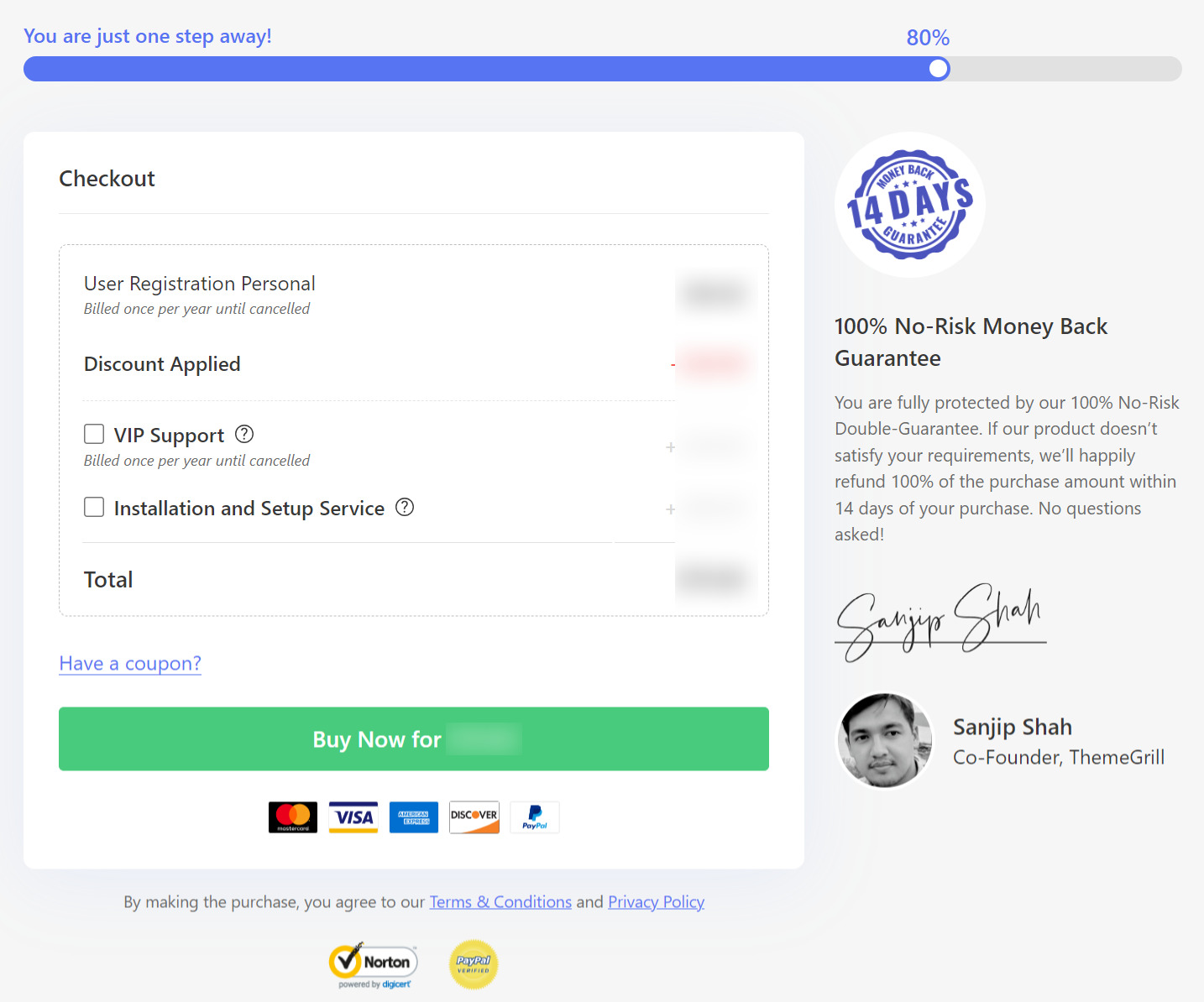
Step 3: Complete the Checkout
You will be redirected to the checkout page
Click the Buy Now button
Step 4: Enter Payment Details
A payment popup will appear
Enter your payment details in the form
Click Pay to complete the renewal
What Happens Next
After successful payment, your subscription will be renewed and you'll regain access to all premium features and updates associated with your plan.