
Manage Site License
Learn how to view, activate, and deactivate WPEverest plugin license keys across multiple sites through your account dashboard.
Last updated on Jul 14, 2026
After you purchase our pro plugin, you can manage your site license keys effortlessly through your WPEverest account dashboard.
This guide will walk you through viewing active sites, deactivating licenses, and managing your activations.
Accessing Your License Keys
Log in to WPEverest at https://wpeverest.com/login/
You will be redirected to your account page at https://wpeverest.com/my-account/
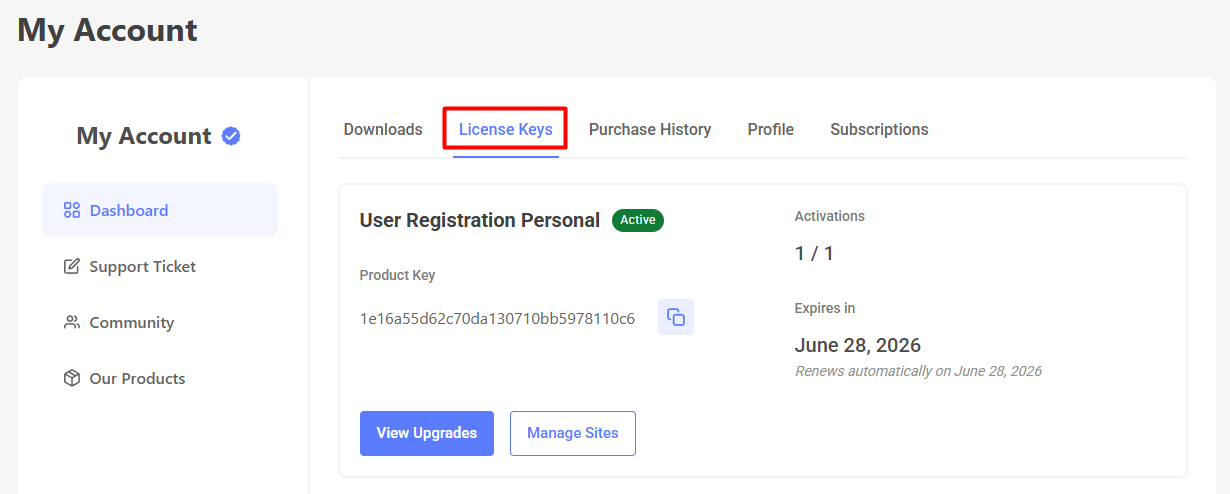
Navigate to the License Keys tab
On this page, you can view:
Your pro plans
Activation keys for each plan
Number of sites currently using each activation key
Managing Active Sites
In the License Keys tab, locate the license you want to manage
Click the Manage Sites button next to your license key
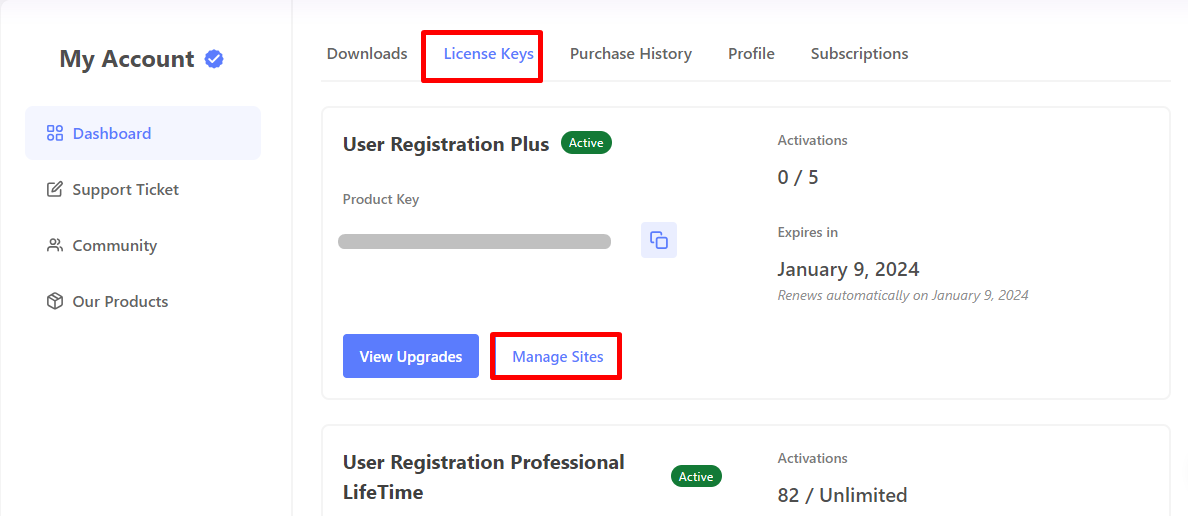
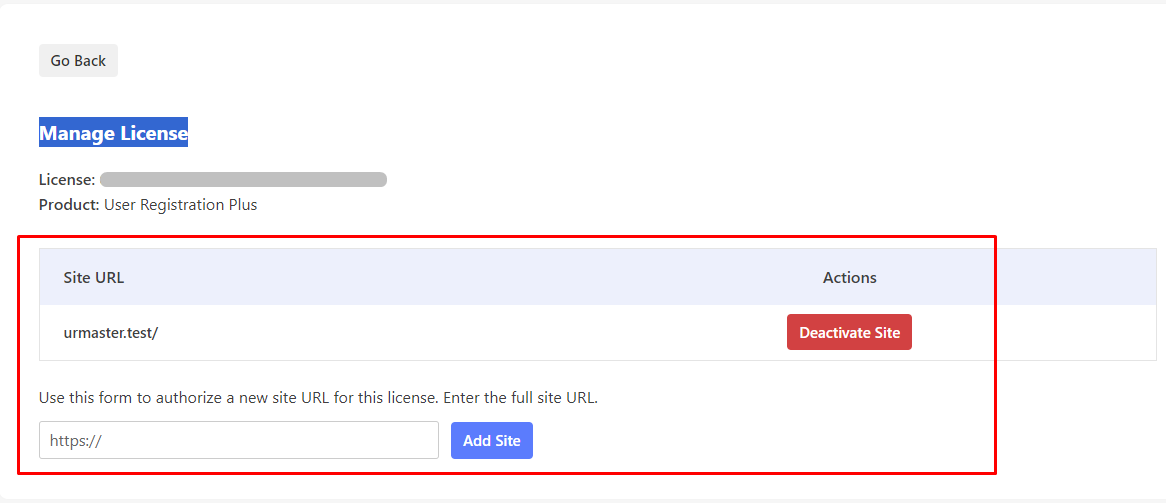
A new window will appear showing all sites currently using that license key
From this window, you can:
View which sites are actively using your license
See how many activation slots are being used based on your pro plan
Deactivate sites whenever needed by clicking the deactivation option
Activating a Site License
To activate the pro version on a new site, you'll need to enter your license key in the plugin settings on that WordPress installation.
For detailed instructions on activating User Registration Pro on a site, refer to the license verification documentation: https://docs.wpeverest.com/user-registration/homepage/how-to-verify-license-key-for-premium-addons/
Important Notes
The number of sites you can activate depends on your purchased pro plan
You can deactivate sites at any time to free up activation slots
Deactivating a site does not delete your license, you can reactivate it later
Site deactivation is useful when moving from staging to production or switching domains