
Generate Purchase Invoice
Learn how to access, view, and download invoices for your WPEverest plugin purchases through your account dashboard.
Last updated on Jul 14, 2026
In this tutorial, you’ll learn how to generate an invoice for your purchase of WPEverest plugins in three easy steps.
Step 1: Log in to wpeverest.com
First of all, make sure are logged in to your WPEverest account. If you aren’t logged in yet, you can log in here.
Step 2: Click on the Purchase History tab
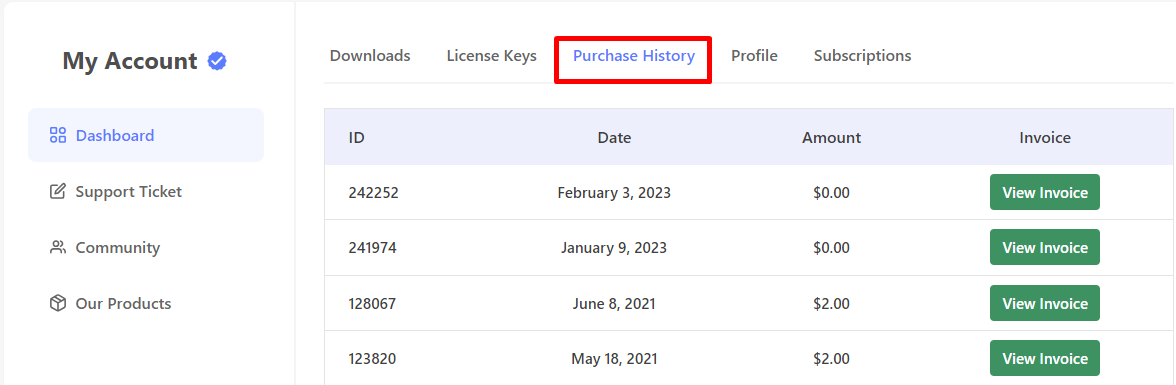
After you’re logged in, go to the My Account page and you can see the My Account tabs: Purchase History, Profile, License Keys, Subscriptions and Downloads.
Now, Click on the Purchase History tab in the Dashboard and you can see all of your purchase records are listed here.
Step 3: Click on View Invoice
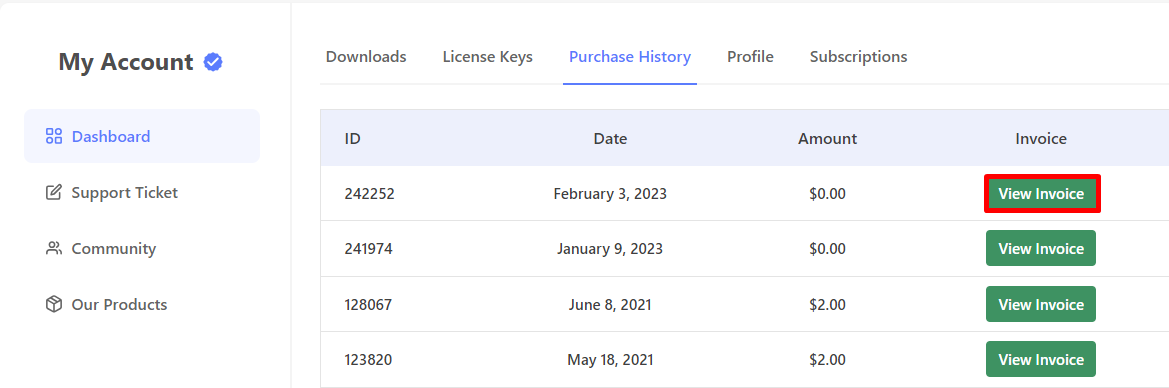
To view the invoice for any of your purchases, you need to click on View Invoice Button.
Step 4:Download Generated Invoice
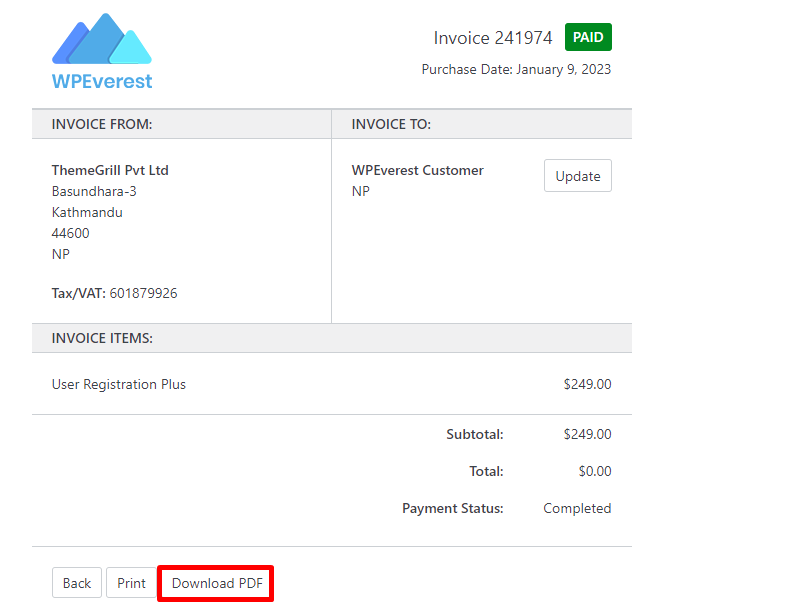
To download the invoice for any of your purchases, you need to click on Download PDF.
Step 5: Update Invoice
To make changes to the invoice for any of your purchases, click the “Update” button and then proceed to make the required adjustments